How to schedule Pinterest Pins for free, and what makes a Pin worth saving
Pinterest has a free scheduler for business accounts, with tighter limits than most people expect. Here is how it works, the Pin fields and their limits, and what Pinterest says earns a save.
10 min read


On this page
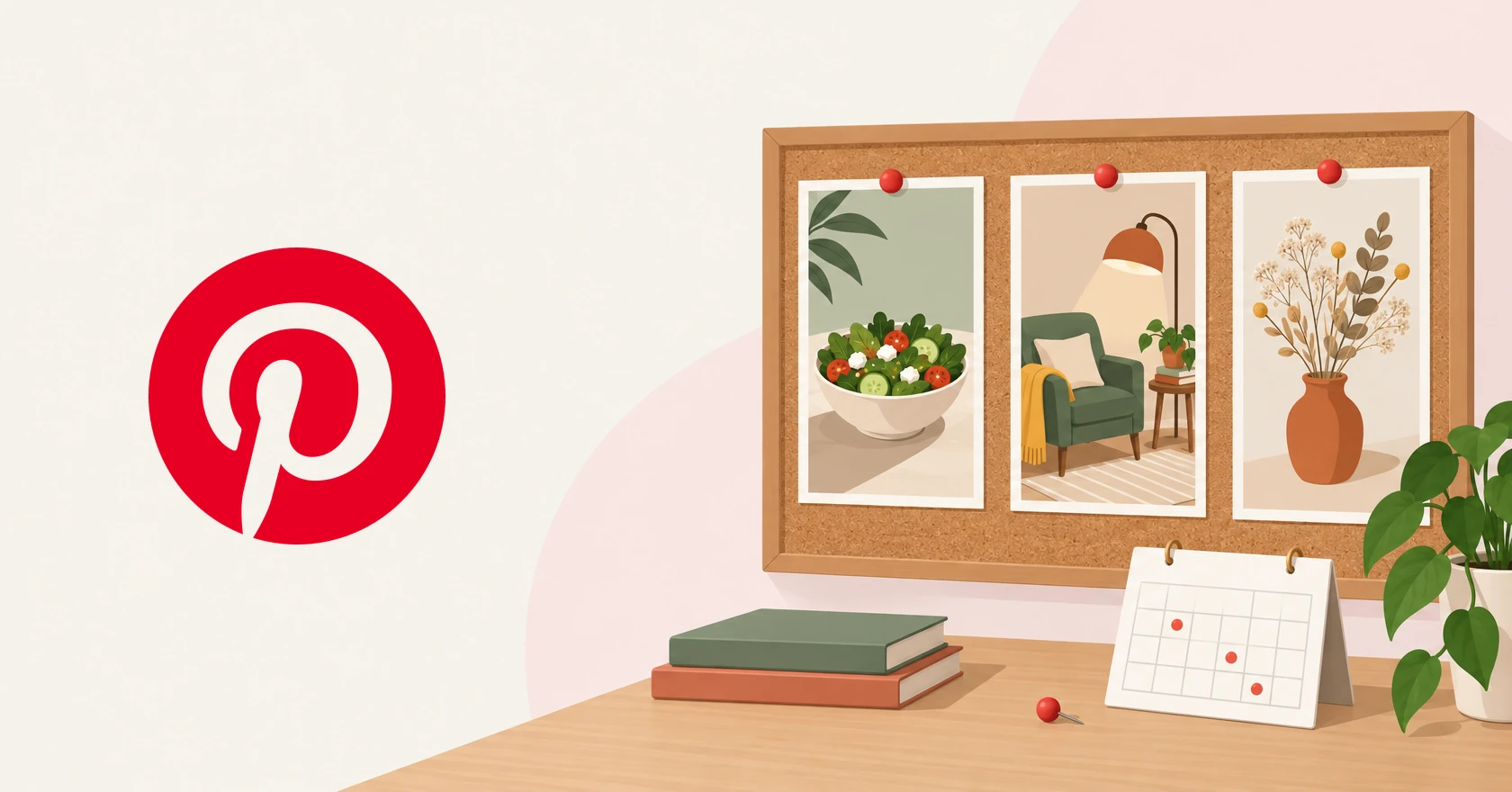
You can schedule Pinterest Pins for free, inside Pinterest itself. A business account, which Pinterest says is free to set up, adds a Publish at a later date option to its Pin builder. That is worth knowing before you pay for any scheduling tool, eksis included.
The native scheduler has limits that are easy to miss, and Pinterest's own help pages disagree on how far ahead it reaches. Scheduling is also only half the job, because a Pin that goes out on time and never gets saved does little. So after the steps comes what Pinterest itself says about fresh Pins, keywords, and posting on a steady rhythm, as its pages read on October 21, 2026.
The short answer
- Yes, you can schedule Pins for free in Pinterest, with a business account.
- On the web, create a Pin, fill in the title, description, link, and board, then select Publish at a later date and pick a day and time.
- Pinterest's Schedule Pins article allows up to 30 days ahead and up to 10 scheduled Pins at once. Another Pinterest help page still says two weeks, so two weeks is the window both agree on.
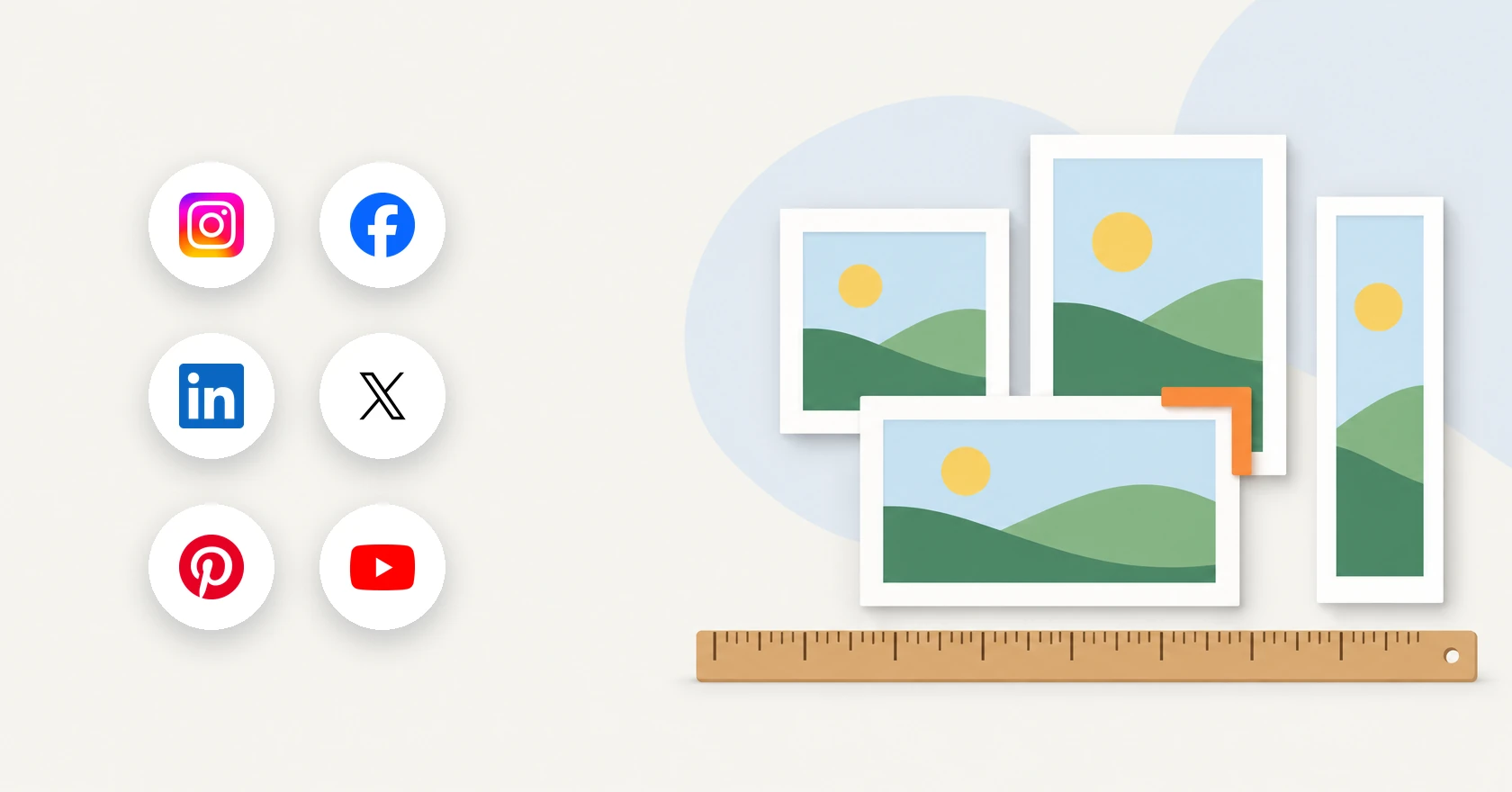
- Make Pins vertical. Pinterest recommends a 2:3 aspect ratio, or 1,000 x 1,500 pixels.
- Put keywords in the title (the first 40 characters may be all the feed shows) and the description, and save the Pin to a clearly named board.
- Publish new, original Pins every week instead of saving the same ones again.
How to schedule Pins in Pinterest
Pinterest's Schedule Pins article sets the condition: "With a business account, you can schedule standard Pins for future posting." When you convert a personal account, Pinterest says, "Your Pins and followers will remain the same." Business accounts are public, so a private personal account has to be switched to public before it can convert.
Schedule a Pin on the web
- Log in to your Pinterest business account.
- Click Create at the top left of the screen. On a business account, open the menu icon and choose Create Pin under Create.
- Upload an image or video. You can select up to 10 images, and each image becomes a separate Pin.
- Fill in the title, description, link, and board. You can also tag up to 10 related topics.
- Select Publish at a later date and choose the day and time.
- Finish creating the Pin.
Scheduled Pins sit on your profile, above your published Pins. Pinterest notes it can take a few minutes for a new one to appear there.
Schedule a Pin in the app
In the app, tap the plus icon, choose Pin, and select your images or videos. Unlike the web, picking more than one in the app stitches them into a single video Pin. Tap Next, fill in the details, then tap the arrow next to Schedule date, pick a date and time, and tap Done. Tap Schedule, check the date and time, and tap Schedule again to confirm.
The native scheduler's limits
| Question | What Pinterest's help center says |
|---|---|
| Who can schedule | Business accounts, for standard Pins |
| How far ahead | 30 days (Schedule Pins, and Create a Pin from an image or video). Two weeks (Pin performance and distribution) |
| How many | One Pin at a time, with up to 10 scheduled for the future |
| What you can change later | Publish date, title, board, description, and link. Not the image or video |
| Where to find them | Your profile, above your published Pins |
| How to delete one | The ellipsis icon on the Pin, then Delete |
The 30-day figure is in the Schedule Pins article and the Pin creation guide. The two-week figure is in the Pin performance article, which links to that same Schedule Pins page. Both were live on October 21, 2026.
The 10-Pin cap is the one most people hit first: a week of daily Pins fits, a month does not.
Pin fields and their limits
| Field | Limit | What Pinterest says about it |
|---|---|---|
| Title | 100 characters | Depending on the device, the first 40 characters may show in feeds. With no title, nothing shows in its place |
| Description | 800 characters | Does not appear in the home feed or search feed, but Pinterest's algorithm uses it to judge relevance |
| Link | 2,048 characters | "Make your Pins actionable by adding a URL that drives traffic back to your site" |
| Board | One per Pin: pick from the drop-down or create one | Clear, descriptive board titles help with search |
| Alt text | 500 characters | Read only to people using a screen reader. Available on standard and video Pins |
| Tagged topics | Up to 10 | Helps "people searching for similar ideas find your Pin" |
Pinterest's help center gives the title, description, and alt text limits. The link limit comes from Pinterest's published API description, which caps the other three fields at the same numbers.
Image and video specs
For images, Pinterest recommends "a 2:3 aspect ratio, or 1000 x 1500 pixels" and warns that Pins with a ratio greater than 2:3 "might get cut off in people's feeds." That line is from its standard image ad specs (Pinterest says those Pins can also generate organic impressions), and its Pin performance article gives the same 2:3 advice. Image Pins made on the web can be up to 20 MB.
For video, Pinterest's Pin specs list MP4 and M4V on the web (MOV as well in the apps) and a length of 4 seconds to 5 minutes. The Pin performance article suggests 15 to 60 seconds, also at 2:3.
What makes a Pin worth saving
Pinterest describes itself as "a visual discovery platform where people can search for, save and shop for ideas." Its business blog says it more plainly: "People use Pinterest as they would use a search engine."
Write for search
Pinterest recommends "filling in all the Pin fields every time you create one," because some fields "don't display to Pinners, but power our recommendation engines behind the scenes." Use the words a person would search for. Boards count too: Pinterest's example of a good board title is "Easy no-bake dinners." To find the terms people use, Pinterest points to Pinterest Trends and its own search bar, and it says to add topic tags whenever the option appears.
Keep it fresh
"Fresh Pins keep your audience engaged and help you to reach new people regularly," according to Pinterest's business blog. Its help center adds a warning: "Try not to repeatedly save the same Pins or upload content that already exists on Pinterest." Doing that can get an account flagged as spam and temporarily blocked from creating Pins.
Show the real thing, sharply
Pinterest's audience guide says the best results come from "inspiring, relevant content that shows people using your brand in realistic settings," and it advises against abstract images. Image quality matters as well: "Blurry or distorted images and videos will make it difficult for people to see your idea."
Match the page you link to
Pinterest's instruction is direct: "Make sure the images, text, and keywords in your Pin match the details in the landing page." A Pin that shows a recipe and lands on a homepage wastes the click it earned.
Ask for the save
Saves feed distribution. In Pinterest's words: "Whenever someone saves your Pins, that's a signal that they're useful and inspiring. As a result, our systems might show those Pins to more people who are interested." It suggests encouraging saves with clear language and specific calls to action.
Post on a steady rhythm
Pinterest's business site says to "create new original Pins at least once a week," and its help center says to "aim to create original content weekly." It sets no number: "Rather than anchoring to a specific number of Pins per week, focus on the content itself." A Pin also keeps working long after the first day. "There's no set engagement window for Pins," Pinterest says, so a Pin can gain engagement "hours, days, months, or even years after it's first published." A weekly batch, scheduled in one sitting, keeps that rhythm going in busy weeks.
Schedule Pinterest Pins in eksis
eksis publishes image, carousel, and video Pins through Pinterest's API at the time you set, so Pinterest's own 10-Pin limit does not apply.
- Connect your Pinterest account, click Create post, select the account, and write your caption. The caption becomes the Pin description, up to 800 characters.
- Add your media and open the tab for your Pinterest account. Under Pinterest settings, pick a Content type: Photo, Carousel (2 to 5 images), or Video.
- Choose a Board. Only public boards are listed, and eksis will not schedule a Pin without one.
- Fill in Pin title (100 characters), Destination link (a full URL starting with https://), and Alt text (500 characters).
- Next to Publish time, click Edit, or click Schedule. Pick a Date and Time, then confirm with Schedule. Times follow your workspace time zone.
The composer checks each Pin as you build it. Images must be PNG or JPEG, videos MP4, MOV, or M4V, and media must fall between 1:2 and 1.91:1, or the Schedule button stays off. A missing link or an image under 600 pixels wide gets a warning instead.
The Free plan includes 1 connected channel and 15 scheduled posts a month. Starter allows 20 channels with no monthly cap, and adds Analytics: impressions, saves, likes (Pinterest's reactions), and comments for your Pins, including ones published directly on Pinterest, which also feed the Best hours to post chart. Pinterest's API only returns Pin analytics from the last 90 days, so older Pins show recent numbers, not lifetime totals. Compare plans.
eksis cannot read or answer Pin comments or messages, since Pinterest's API has no endpoint for them. It also cannot post to secret boards or board sections, tag topics, set a custom video cover (it uses the first frame), or show outbound link clicks. More on the Pinterest integration.
Related reading
- Caption limits for 9 platforms, side by side.
- Plan a week of social media posts, for the weekly batch.
- Social media metrics worth tracking, for after your Pins go live.
Sources
- Pinterest Help: Schedule Pins
- Pinterest Help: Create a Pin from an image or video
- Pinterest Help: Pin performance and distribution
- Pinterest Help: Review Pin specs
- Pinterest Help: Review ad specs
- Pinterest Help: Add alternative text to your Pins
- Pinterest Help: Get a business account
- Pinterest Business: How to make Pins
- Pinterest Business: How to build your audience on Pinterest in 2025
- Pinterest Business: Creative best practices for Pinterest ads
- Pinterest Business: How Pinterest works
- Pinterest: REST API OpenAPI description (GitHub)
All were read on October 21, 2026.
Frequently Asked Questions
Can you schedule Pinterest Pins for free?
Yes. Pinterest's own Pin builder has a Publish at a later date option for business accounts, and Pinterest says the business account is free to set up. Converting a personal account keeps your Pins and followers.
How far in advance can you schedule Pins on Pinterest?
Pinterest's Schedule Pins article and its Pin creation guide both say up to 30 days. Its Pin performance and distribution article still says two weeks. As of October 21, 2026, both versions are live, so check the date picker if you plan more than two weeks out.
How many Pins can you schedule at once on Pinterest?
Pinterest says you can schedule one Pin at a time and have up to 10 scheduled for the future. A tool that publishes through Pinterest's API, such as eksis, holds the Pins until their time, so that cap does not apply, though eksis's Free plan has its own limit of 15 scheduled posts a month.
Where do scheduled Pins appear, and can I edit them?
They appear on your profile, above your published Pins, and Pinterest says a new one can take a few minutes to show up. You can change the publish date, title, board, description, and link, but not the image or video.
What size should a Pinterest Pin be?
Pinterest recommends a 2:3 aspect ratio, or 1,000 x 1,500 pixels, and warns that Pins with a ratio greater than 2:3 might get cut off in feeds. Image Pins made on the web can be up to 20 MB.
Can eksis reply to Pinterest comments?
No. Pinterest's API has no endpoint for Pin comments and no messaging API for third-party apps, so eksis can schedule and measure Pins but cannot read or answer comments or messages.