How to schedule YouTube Shorts ahead of time, in YouTube Studio or a scheduler
YouTube Studio schedules a Short like any other video: upload it, pick the Schedule card, and set a date, time, and time zone. Here is how it works, what makes an upload count as a Short, and how to schedule Shorts in eksis.
8 min read



On this page
YouTube lets you schedule a Short the same way as any other video. In YouTube Studio you upload the file, fill in the details, choose the Schedule card instead of publishing, and set a date, time, and time zone. Until that moment the Short stays private, and YouTube makes it public on time.
What makes a video a Short is not a setting you pick. YouTube treats any square or vertical upload of three minutes or less as a Short, so the scheduling part is easy and the file is where people go wrong. This guide covers YouTube's own scheduler first, as YouTube's help pages read on October 24, 2026, then how to schedule Shorts in eksis and how the two differ.
The short answer
- In YouTube Studio, click Create, then Upload videos, pick the file, fill in the details, click the Schedule card, set the date, time, and time zone, and click Schedule.
- The YouTube app can schedule too, according to YouTube's help page.
- A video counts as a Short when it is square or vertical and up to three minutes long. There is no separate Shorts switch.
- A Short longer than one minute with any active copyright claim is blocked worldwide, so check your music before you schedule it.
- eksis schedules Shorts and long videos to YouTube with the title, audience, visibility, thumbnail, and an optional first comment, and adds #Shorts to the description for you.
Schedule a Short in YouTube Studio
YouTube's Help Center article "Schedule video publish time" describes one flow for every upload, Shorts included:
- Sign in to YouTube Studio, or open the YouTube app.
- Click Create, then Upload videos.
- Select the file and enter the video details: title, description, thumbnail, audience, and so on.
- Click the Schedule card.
- Set the date, the time, and the time zone the video should be published in.
- Click Schedule.
The video waits as private and goes public at that time. YouTube's "Upload YouTube Shorts" page adds that you can choose up to 15 short videos at once, but you should click Edit draft on each one to complete its details before publishing.
Change or cancel a scheduled Short
Open Content in YouTube Studio's left menu, select the video, and open its visibility settings. To move the time, keep the visibility on Private, click Edit draft, and pick a new time under Schedule. To publish right away instead, set the visibility to Public and click Publish.
Two details that catch people out
- The date under the video follows Pacific time. YouTube says the "published on" date on the watch page is based on Pacific Standard Time. If you schedule a Short for early morning in a time zone ahead of Pacific time, the date shown under the video can differ from the one you see in YouTube Studio.
- A Community Guidelines strike pauses your schedule. During the penalty period a scheduled video does not publish. YouTube keeps it private, and you have to schedule it again when the freeze ends.
What makes an upload a Short
YouTube does not ask whether an upload is a Short. Its help page "Understand three-minute YouTube Shorts" says that videos uploaded on or after October 15, 2024 "with a square or vertical aspect ratio up to three minutes in length will be categorized as Shorts". The "Upload YouTube Shorts" page gives the same two conditions: up to 3 minutes, square or vertical.
That has a few practical consequences when you schedule ahead:
| Your file | What YouTube does with it |
|---|---|
| Vertical, 2 minutes 50 seconds | Short |
| Square, 45 seconds | Short |
| Vertical, 3 minutes 5 seconds | Regular video |
| Horizontal, 30 seconds | Regular video |
Check the exported length before you schedule, not just the length on your editing timeline. A few seconds of black frames at the end can push a clip past three minutes.
Music and copyright
Copyright rules are stricter for longer Shorts. YouTube blocks any Short over one minute that has an active copyright claim of any type, including manual claims, worldwide. The channel gets no penalty, but the Short does not play, is not recommended, and earns nothing until the claim is resolved. Shorts under a minute keep the earlier rules.
YouTube's suggestions for safe audio: songs from the Shorts Audio Library, most of which can be used for up to 90 seconds in a three-minute Short (some only 60 or 30 seconds), and royalty-free tracks from the YouTube Audio Library in YouTube Studio, which do not receive Content ID claims. The Shorts Audio Library is added inside YouTube's own tools, so a Short you schedule from another app has to carry its audio in the file already.
Schedule YouTube Shorts in eksis
eksis uploads Shorts and long videos to YouTube through the YouTube Data API. To connect, click the + next to Channels in the sidebar, choose YouTube, pick the Google account that owns or manages the channel, approve every permission, tick the channel on Pick the accounts to connect, and click Connect. eksis publishes to a channel, so a Google account without one cannot be connected.
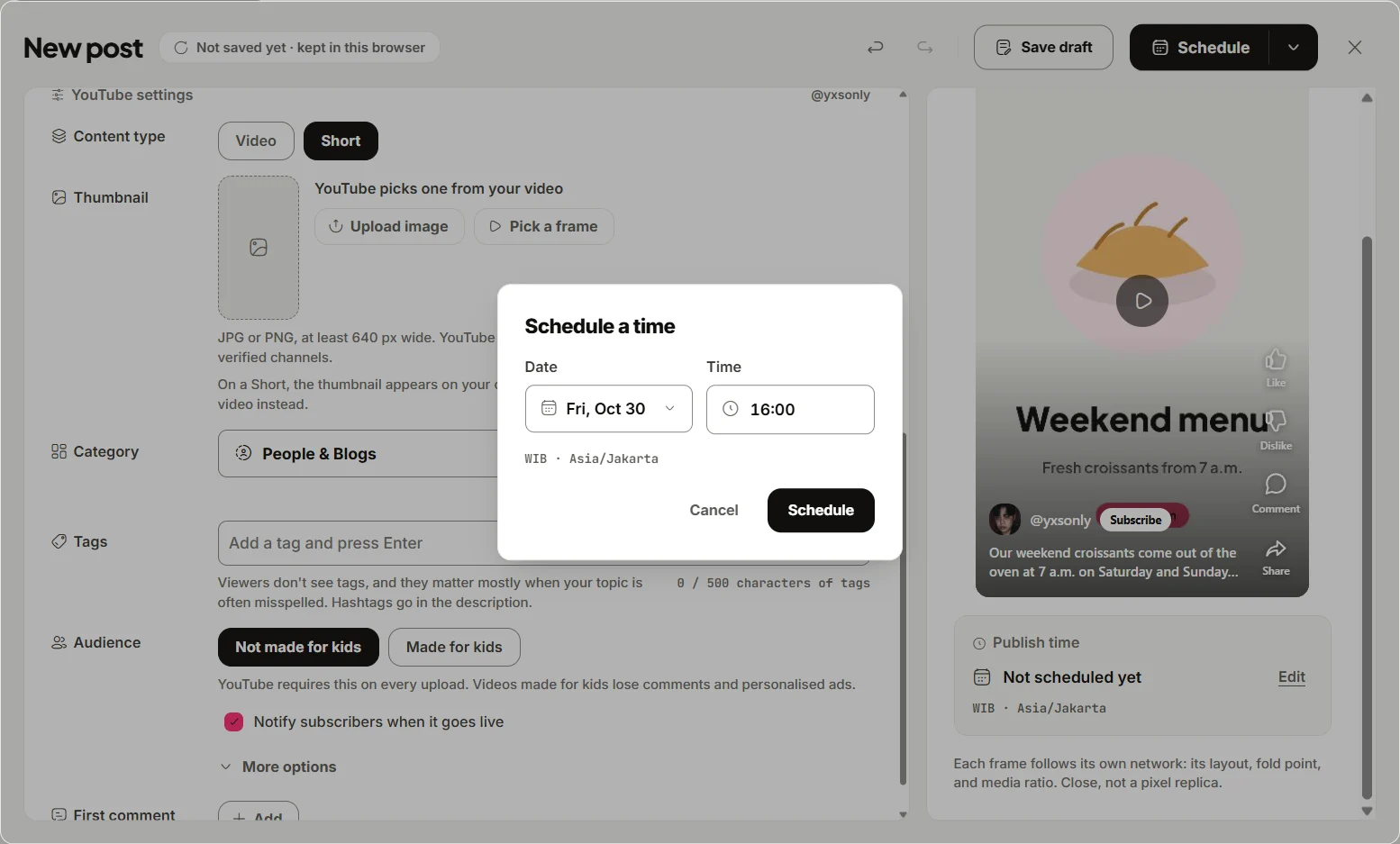
To schedule a Short:
- Click Create post and pick your YouTube channel. Add your TikTok or Instagram accounts too if the same video goes there.
- Add the video. Your caption becomes the video description.
- On the YouTube tab, set Content type to Short. The option is greyed out when the video is longer than three minutes or wider than it is tall, so a file that YouTube would treat as a regular video cannot be scheduled as a Short by mistake.
- Fill in Title, up to 100 characters, and choose an Audience: Not made for kids or Made for kids. YouTube requires both, so eksis will not schedule the post until they are set.
- Choose Visibility: Public, Unlisted, or Private. The same tab, partly under More options, also holds Category, Tags, Altered content (for realistic synthetic or altered footage), Video language, Title language, and Notify subscribers when it goes live, which applies to public videos only.
- For Thumbnail, leave it to YouTube, click Pick a frame to choose a moment from the video, or upload a JPG or PNG at least 640 px wide. On a Short the thumbnail shows on your channel and in search, while the Shorts feed plays the video itself. YouTube only shows custom thumbnails on phone-verified channels.
- Add a First comment if you want one, for example a link or a question, and eksis posts it under the video after it goes live.
- Click Edit next to Publish time, pick the Date and Time in the Schedule a time dialog, and click Schedule.
When it publishes, eksis adds #Shorts to the end of the description if it is not already there.
Scheduled posts sit in Posts, the calendar for the whole workspace. Drag a card to move it, or open Post details to edit or delete it until it starts publishing. Times follow the workspace time zone under Settings, General, Time zone.
How eksis differs from scheduling in YouTube Studio
- When the upload happens. YouTube Studio uploads your file right away and holds it as a private video until the scheduled time. eksis keeps the file and uploads it to YouTube when the publish time arrives. Your Short does not exist on YouTube until then, so it cannot be found early by anyone with the link, but YouTube's processing also starts at publish time.
- The daily upload quota. Uploads through eksis share one daily YouTube API quota. If eksis shows "The daily YouTube API quota for eksis is used up", uploads resume after the quota resets at midnight Pacific time.
- One draft, several platforms. The same vertical file can go to TikTok, Instagram Reels, and YouTube Shorts from one composer, with a title for YouTube and a separate caption for each. Our guide to posting one vertical video to all three covers how to export that file.
After the Short is live, its comments arrive in the eksis Inbox, where you can reply to, hide, or delete them. YouTube has no API for liking a comment or for direct messages, so those stay on YouTube.
Plans and limits
The Free plan connects one social account and schedules 15 posts a month, and eksis publishes up to 10 videos per YouTube channel in any 24 hours on it. Paid plans follow YouTube's own limits; Starter is $4 a month for up to 20 accounts and adds Analytics for your YouTube videos. See the YouTube integration or compare plans.
Sources
- YouTube Help: Schedule video publish time
- YouTube Help: Upload YouTube Shorts
- YouTube Help: Understand three-minute YouTube Shorts
- eksis docs: Connect YouTube
- eksis docs: YouTube platform specifications
- eksis docs: Create and schedule a post
- eksis pricing
All were read on October 24, 2026.
Frequently Asked Questions
Can you schedule YouTube Shorts?
Yes. Upload the Short in YouTube Studio or the YouTube app, fill in the details, choose the Schedule card, set the date, time, and time zone, and click Schedule. The Short stays private until then and goes public on time.
How do I make sure my scheduled video posts as a Short?
Make it square or vertical and three minutes or shorter. YouTube classifies every upload since October 15, 2024 that meets both conditions as a Short, and anything longer or wider as a regular video. There is no separate Shorts switch on YouTube.
Can I change the time of a scheduled Short?
Yes. In YouTube Studio, open Content, select the video, keep its visibility on Private, click Edit draft, and pick a new time under Schedule. In eksis, drag the post to a new time in Posts or edit it in Post details.
Why was my scheduled Short blocked?
A Short longer than one minute with any active copyright claim is blocked worldwide until the claim is resolved. Use audio from the Shorts Audio Library within its time limit, royalty-free music from the YouTube Audio Library, or your own sound.
Does eksis add #Shorts to the description?
Yes. When a YouTube post is set to Short, eksis adds #Shorts to the end of the description at publish time if the description does not already include it.