How to schedule Instagram posts from your phone or a computer
Instagram lets a public account schedule posts and reels in the app, up to 25 a day and 30 days ahead. Here are the steps, how to do it from a computer, what the app scheduler can't do, and how to schedule Instagram and Facebook together.
7 min read



On this page
Yes, you can schedule Instagram posts, and you don't need another app to do it. In the Instagram app, tap Create, pick Post or Reel, add your caption, tap More options, and turn on Schedule this post. Your account has to be public, and Instagram allows up to 25 scheduled posts a day, up to 30 days ahead.
That covers one post on one phone. It gets harder when you want to plan from a computer, schedule stories, or send the same post to Instagram and a Facebook Page. This guide follows Instagram's and Meta's help pages, then shows how to schedule Instagram and Facebook together in eksis.
The short answer
- In the Instagram app: Create, Post or Reel, More options, Schedule this post, pick a date and time, Done, Back, Schedule.
- Who can: any public Instagram account. Instagram lists photos, carousels, and reels; its help page does not mention stories.
- Limits: 25 scheduled posts a day, up to 30 days ahead. Product tags, collaborative posts, sponsored posts, and fundraisers can't be scheduled.
- From a computer: Meta Business Suite schedules Instagram posts and reels, and can send the same post to a Facebook Page.
- With a scheduler: tools publish through Meta's API, which needs a Business or Creator account. eksis schedules feed posts, carousels, reels, and stories, to Instagram and Facebook from one draft.
Schedule a post or reel in the Instagram app
Instagram's help article "How to create and manage scheduled posts and Reels on Instagram" lists two requirements before you start: the account must be public, and you can schedule up to 25 posts a day, up to 30 days in advance. A scheduled post keeps the privacy and audience settings you had when you scheduled it.
- Tap Create in the top left, or swipe right anywhere in Feed. Then tap Post or Reel.
- Select a photo or video, then tap Next.
- Add a caption, effects, or filters.
- Tap More options.
- Turn on Schedule this post (or Schedule this reel), then choose a date and time.
- Tap Done, then Back.
- Tap Schedule.
Instagram notes that product tagging, collaborative posts, sponsored posts, and fundraisers aren't compatible with scheduled content. If a post needs any of those, publish it by hand at the time you want.
Find, change, or cancel a scheduled post
There are two ways in. From your profile, tap Menu in the top right, then Scheduled content under Your insights and tools. Or tap Create, pick Post or Reel, and tap Scheduled. Either way, tap Options next to the post and choose Delete, Edit post, Reschedule, or Share now.
Schedule Instagram posts from a computer
Instagram's own scheduler lives in the phone app. On a computer, Meta's free option is Meta Business Suite at business.facebook.com, the same tool that schedules Facebook Page posts.
- Click Create post from the home page or the Content tab.
- Under Post to, tick your Instagram profile. Tick your Facebook Page too if the same post should go there.
- Under Media, add your photos. Meta notes a limit of 10 photos when the post goes to Instagram.
- Write the caption. With both platforms ticked, you can write different text for each.
- Under Scheduling options, pick the date and time, then click Schedule.
Reels use Create reel instead, with their own steps for the thumbnail and audio. Two Instagram limits apply there: Business Suite can't build an Instagram reel from photos, and it can't edit the video for Instagram. Our guide to scheduling Facebook posts and Reels walks through both flows and the Planner calendar step by step.
Can you schedule Instagram posts on a personal account?
In the Instagram app, yes, as long as the account is public. Instagram's help page asks for a public account, not a professional one.
Scheduling tools are different. Every tool that publishes for you goes through Meta's Instagram API, and that API only serves Business and Creator accounts, so a personal account has to be switched to one of those in the Instagram app's settings first.
Scheduling Instagram and Facebook together in eksis
If you sell on Instagram and a Facebook Page, the work is usually the same post going to both, planned a week at a time, while orders and DMs keep coming in. eksis is built for that: one draft for both accounts, a calendar for the week, and the comments from both in one inbox.
Connect Instagram first: click the + next to Channels in the sidebar, choose Instagram, and pick Instagram login or Through a Facebook Page (the second also lets you tag a location). Then add your Facebook Page the same way.
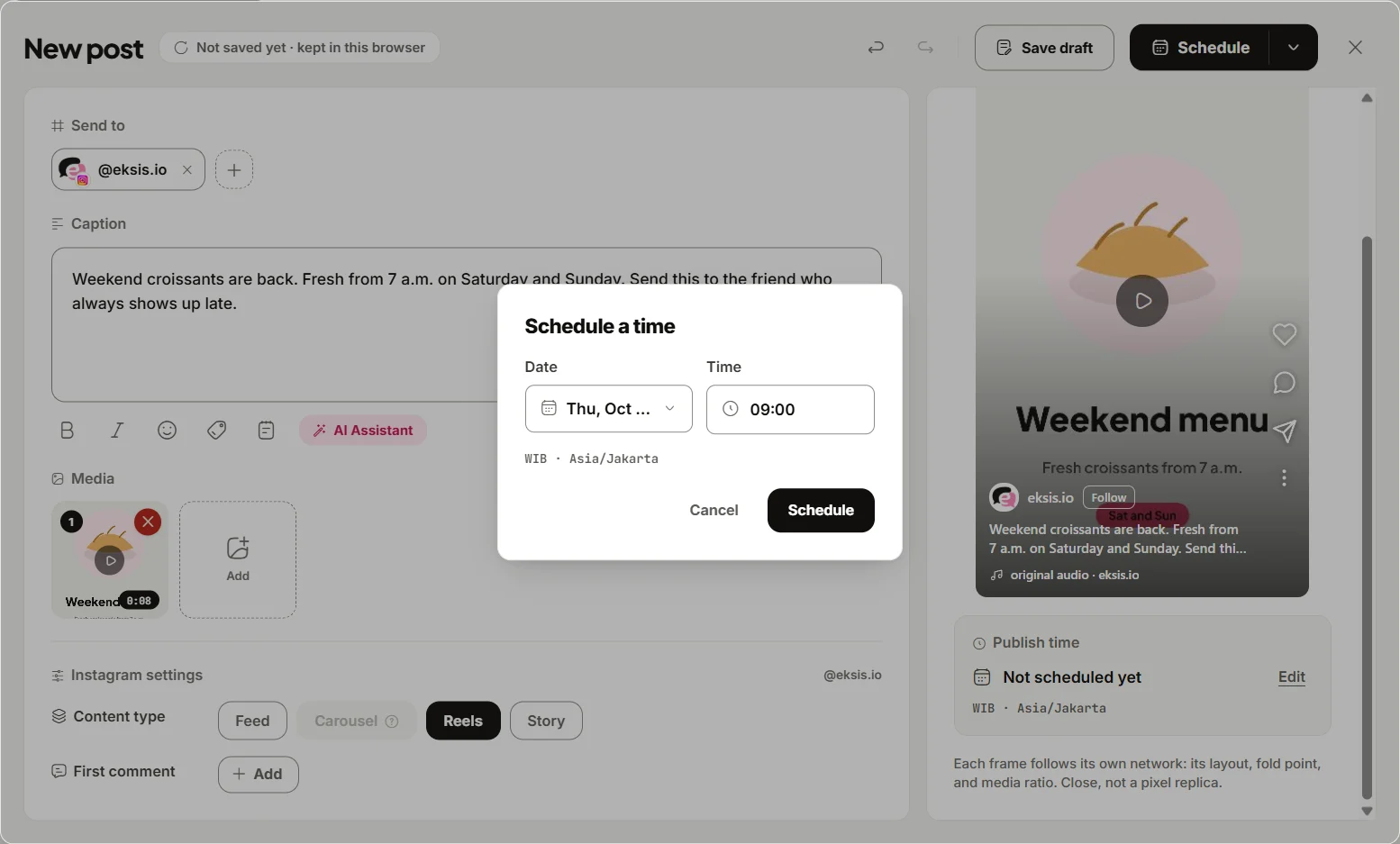
To schedule a post:
- Click Create post and pick your Instagram account and your Facebook Page.
- Add the photos or video and write the caption. On the Instagram tab, set Content type: feed post, carousel, Reels, or story. Stories publish on their own at the time you set, with no reminder on your phone.
- Open each account's tab if you want a different caption for Facebook. Reset to base caption brings back the shared text.
- Add a First comment if you keep hashtags or a link out of the caption.
- Click Edit next to Publish time, pick the date and time in Schedule a time, and click Schedule.
The post shows up in Posts, where you can switch between Week, Month, and List, drag it to another time, or open it to edit or delete it. eksis has no 30-day ceiling; it only refuses a time that has already passed.
After the post goes live, comments from Instagram and Facebook arrive in the eksis Inbox, where you can reply, hide, or delete them, and send a private reply by DM within 7 days of an Instagram comment. If the same questions keep coming ("price?", "link please"), our guide to auto replies on Instagram comments shows how to answer them with a DM automatically.
Plans and limits
The Free plan connects one social account and schedules 15 posts a month, and eksis publishes up to 25 posts per Instagram account in any 24 hours on it. An Instagram account plus a Facebook Page counts as two accounts, so scheduling both starts on Pro Eksis at $3 a month for up to 20 accounts, which also adds Analytics. On paid plans, Instagram's own limit of 100 posts a day applies. See the Instagram integration or compare plans.
For when to schedule, see the best time to post on Instagram, and for reels, how long an Instagram reel can be when a tool publishes it.
Sources
- Instagram Help Center: How to create and manage scheduled posts and Reels on Instagram (read November 9, 2026)
- Meta Business Help Center: Create and manage posts in Meta Business Suite on desktop (read October 24, 2026)
- Meta Business Help Center: Create and manage reels in Meta Business Suite (read October 24, 2026)
- eksis docs: Connect Instagram
- eksis docs: Publishing limits
- eksis pricing
Frequently Asked Questions
Can you schedule posts on Instagram?
Yes. In the Instagram app, tap Create, pick Post or Reel, tap More options, and turn on Schedule this post. The account must be public, and you can schedule up to 25 posts a day, up to 30 days ahead.
Can I schedule Instagram posts on desktop?
Not in Instagram's own scheduler, which is in the phone app. On a computer, use Meta Business Suite or a scheduler such as eksis.
Can I schedule Instagram stories?
Instagram's help page on scheduling covers photos, carousels, and reels and does not mention stories. Schedulers that publish through Meta's API can schedule stories; in eksis, a scheduled story goes out on its own at the time you set.
How do I schedule the same post to Instagram and Facebook?
In Meta Business Suite, tick both your Instagram profile and your Facebook Page under Post to before you schedule. In eksis, pick both accounts in Create post, write one caption or one per account, and schedule them together.
Why can't I schedule an Instagram post?
Check three things from Instagram's help page: the account must be public, you can't schedule more than 25 posts a day or more than 30 days ahead, and posts with product tags, collaborators, sponsored content, or a fundraiser can't be scheduled.