How to schedule Facebook Page posts and Reels in Meta Business Suite, and what changes in a scheduler
Meta Business Suite schedules Facebook Page posts and Reels for free, with separate flows for each. Here are the steps from Meta's help pages, how Facebook's 2025 video change affects Reels length, and how to schedule both in eksis.
9 min read



On this page
Facebook's free way to schedule Page posts and Reels is Meta Business Suite. On a computer you click Create post or Create reel, pick your Page, add the media and text, and choose a date and time under the scheduling options. Everything you book shows up in the Planner and on the Content tab, where you can edit, reschedule, or delete it before it goes out.
Two things make Facebook scheduling less simple than it looks. Posts and Reels have separate creation flows with different options, and Meta has been merging video and Reels on Facebook since June 2025, so the rules for a long video are not the same in the Facebook app and in tools that publish through Meta's API. This guide covers Meta Business Suite first, from Meta's help pages as they read on October 24, 2026, then how to schedule Facebook posts and Reels in eksis.
The short answer
- In Meta Business Suite on desktop: Create post, pick the Page under Post to, add media and text, set the date and time under Scheduling options, click Schedule.
- For Reels, use Create reel instead. It has its own steps for thumbnail, audio, captions, and remixing, and it can be scheduled the same way.
- You need full control of the Page or Content permission to create posts or reels for it.
- Manage scheduled items from Content, then the Posts & reels tab, then Scheduled.
- eksis schedules text, link, photo, and video posts and Reels to Facebook Pages, but not to personal profiles. Reels through eksis must be 3 to 90 seconds long.
Schedule a Facebook Page post in Meta Business Suite
Meta's help article "Create and manage posts in Meta Business Suite on desktop" lists one requirement up front: you need full control of the Page, or Content permission for it.
- Go to Meta Business Suite (business.facebook.com) and click Create post, from the home page or the Content tab.
- Under Post to, choose your Facebook Page. You can also tick an Instagram profile or a Facebook Group to post the same thing there.
- Under Media, add your photos. Meta notes a limit of 10 photos when the post also goes to Instagram.
- Under Post details, write the text. If you post to both Facebook and Instagram, you can write different text for each. Icons under the text box add hashtags, a location, or a feeling or activity.
- Under Privacy settings, choose Public or Restricted.
- Under Scheduling options, pick the date and time. Active times suggests slots based on when your followers were most active on Facebook and Instagram over the past 7 days.
- Click Schedule. Publish posts it now, and Finish later keeps it as a draft.
The Active times button is the closest thing Meta offers to a best-time recommendation, and it only looks back seven days, so a single unusual week can move it. For a longer view, see our comparison of three studies on the best time to post on Facebook.
Schedule a Facebook Reel in Meta Business Suite
Reels have their own flow, described in Meta's "Create and manage reels in Meta Business Suite". On desktop:
- Click Create reel from the home page or the Content tab.
- Under Post to, pick your Page (and an Instagram profile if you want both).
- Under Media, click Add video, or Add photos to build a reel from still images. For a video, choose a frame or upload an image under Thumbnail. For photos, Sound sync lets you pick audio to sync with them.
- Under Reel details, write the caption, with separate text for Facebook and Instagram if you like. Click Next.
- If the reel goes only to Facebook, you can now change its audio, change the aspect ratio, or trim the video. Click Next.
- Choose to share it now, schedule it, or save a draft. To schedule, pick the date and time.
- Set Closed captions & translations, the Remixing and original audio use option, and the audience under Who can see this?, then click Schedule.
Two Instagram limits apply when a reel goes to both: you cannot build an Instagram reel from photos in Business Suite, and you cannot edit the video there for Instagram.
The Meta Business Suite mobile app can schedule reels too: tap +, choose Reel, add clips, tap Next, write the title and description, pick the Page under Share to, choose Schedule for later under Scheduling options, and tap Schedule. Meta notes that reels from business or creator Pages can only be posted publicly.
Manage what you scheduled
Click Content in the left menu, open the Posts & reels tab, and select Scheduled. Click the ... icon on an item, then Manage post. For posts you can choose Edit post, Reschedule post, Move to drafts, or Delete post. Reels have a longer list that also includes Change date, Change remix and audio use, and Expire now.
The Planner shows the same content on a weekly or monthly calendar, across Facebook and Instagram, and Meta suggests using it to see your month ahead, duplicate posts you have already created, and keep drafts for later. Meta's help pages that we read do not state how far ahead a post or reel can be scheduled.
Posts, videos, and Reels on Facebook in 2026
In June 2025 Meta announced that all new videos on Facebook would be shared as reels, rolled out to profiles and Pages "over the coming months", and that "Reels on Facebook will also not have any length or format restrictions." The Video tab became the Reels tab. Videos you posted before stay where they are.
That change describes the Facebook app and Meta Business Suite. Tools that publish through Meta's API follow Meta's developer documentation, and our vertical video guide found that the Reels publishing API still listed 3 to 90 seconds when we read it in October 2026. So the Facebook app may accept a longer reel than a scheduler using that Reels endpoint can send, and a scheduler has to keep reels to 90 seconds or publish a longer video another way.
Schedule Facebook Page posts and Reels in eksis
eksis publishes to Facebook Pages through Meta's Graph API. A personal profile cannot be connected, because Facebook's publishing API only serves Pages. To connect a Page, click the + next to Channels in the sidebar, choose Facebook, approve every permission, include the Pages you want when Facebook asks which ones eksis may use, then tick them on Pick the accounts to connect and click Connect.
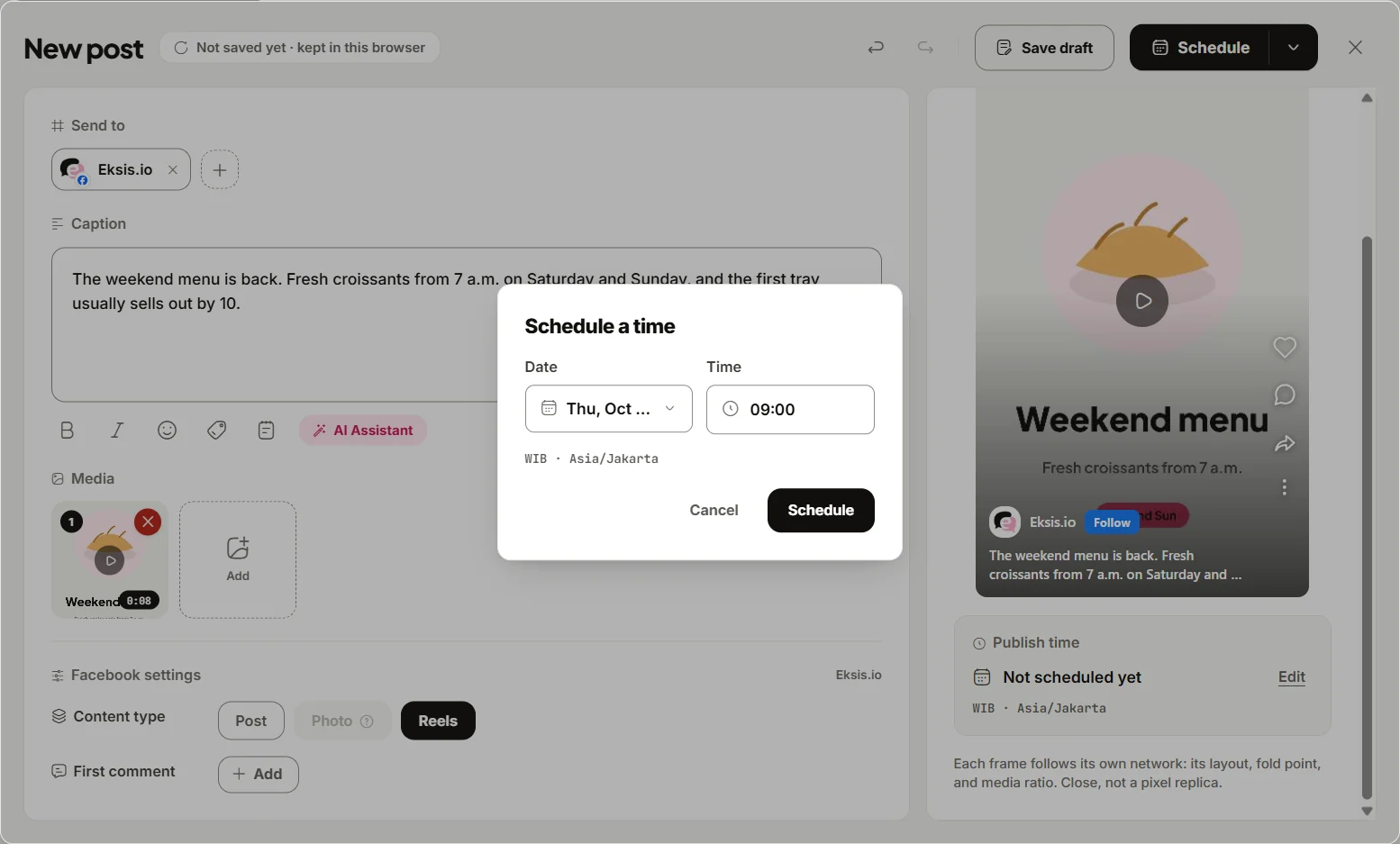
To schedule a post:
- Click Create post and pick your Facebook Page. Add your Instagram account too if the same post goes there.
- Write the text and add media. On the Facebook tab, set Content type:
- Post: text, a link, photos, or a video, up to 10 media. A text post with a link gets a preview card built from that page.
- Photo: 1 to 10 photos with a caption.
- Reels: one vertical video, 3 to 90 seconds, at an aspect ratio between 1:2 and 9:16, up to 1 GB.
- With several accounts selected, open each account's tab to write a caption just for it. Reset to base caption brings back the shared text.
- Add a First comment if you want one, for example the link you kept out of the caption.
- Click Edit next to Publish time. In the Schedule a time dialog, pick the Date and Time, then click Schedule.
Publish times follow your workspace time zone, under Settings, General, Time zone. The scheduled post appears in Posts, where you can switch between Week, Month, and List, drag a card to a new time, or open Post details to edit, duplicate, or delete it. Each Page also has its own screen in the sidebar, with Queue, Sent, and Drafts tabs.
What to know before you switch
- Reels length. eksis checks a Reel against the 3 to 90 second range before it lets you schedule. A longer video can go out with Content type Post, which accepts video up to four hours; how Facebook then presents it is Facebook's decision, following the June 2025 change above.
- Editing tools. Business Suite's reel editor (audio, trim, aspect ratio, sound sync, photo reels) works inside Meta's tools. eksis publishes the file you upload as it is, so edit it first.
- Comments and Messenger. After the post is live, its comments arrive in the eksis Inbox, where you can reply, like, hide, or delete them, and Messenger conversations can be answered within 24 hours of the person's last message. Direct messages in the Inbox need a paid plan; Free shows comments only.
- Daily limit. On the Free plan, eksis publishes up to 25 posts per Page in any 24 hours. Paid plans follow Facebook's own limits.
The Free plan connects one social account and schedules 15 posts a month. A Page plus its Instagram account counts as two accounts, so cross-posting starts on Starter at $4 a month for up to 20 accounts, which also adds Analytics for your Page. See the Facebook integration or compare plans. If you also want comment replies on autopilot, our guide to auto replies on Instagram comments shows the same comment-to-DM setup that works on Facebook Pages.
Sources
- Meta Business Help Center: Create and manage posts in Meta Business Suite on desktop
- Meta Business Help Center: Create and manage reels in Meta Business Suite
- Meta Business Help Center: Best practices for using the Planner in Meta Business Suite
- Meta: Making it easier to create videos on Facebook (June 17, 2025)
- eksis docs: Connect Facebook
- eksis docs: Facebook platform specifications
- eksis docs: Calendar and queue
- eksis pricing
All were read on October 24, 2026.
Frequently Asked Questions
How do I schedule a post on my Facebook Page?
Open Meta Business Suite, click Create post, choose your Page under Post to, add your media and text, pick a date and time under Scheduling options, and click Schedule. You need full control of the Page or Content permission for it.
Can you schedule Facebook Reels?
Yes. In Meta Business Suite, click Create reel, add the video, write the caption, click Next, and choose to schedule it with a date and time. The Meta Business Suite mobile app can schedule reels too, under Scheduling options, Schedule for later.
Where do I find my scheduled Facebook posts?
In Meta Business Suite, click Content, open the Posts & reels tab, and select Scheduled. The Planner shows the same items on a weekly or monthly calendar.
Can I schedule posts to a personal Facebook profile?
Not through eksis or any tool that uses Facebook's publishing API, because that API only serves Pages. In Meta Business Suite, the Post to list covers Pages, Instagram profiles, and Facebook Groups.
How long can a Facebook Reel be when I schedule it?
In the Facebook app and Business Suite, Meta said in June 2025 that reels would have no length or format restrictions. Through Meta's Reels publishing API, which schedulers use, the limit was 3 to 90 seconds when we checked in October 2026, and eksis enforces that range for Reels.