How to schedule LinkedIn posts, including PDF document carousels
LinkedIn's own scheduler books profile posts 10 minutes to 3 months ahead, and Pages have tighter rules. Here is how both work, the limits on PDF document posts, and how to schedule LinkedIn posts and documents in eksis.
9 min read



On this page
LinkedIn has its own scheduler, and it is better than most people assume. From a personal profile you can book a post anywhere from 10 minutes to 3 months ahead, on desktop or in the app, and change the time or the text later from a Scheduled posts page. LinkedIn Pages get a similar tool with a few more exceptions.
Document posts, the swipeable PDFs people call LinkedIn carousels, follow their own rules: one file per post, up to 100 MB and 300 pages, a title, and no way to swap the file once it is live. This guide covers LinkedIn's native scheduling for profiles and Pages first, then document posts, then how to do the same in eksis, including what eksis does not support on LinkedIn.
The short answer
- On a profile: click Start a post, write it, click the clock icon, pick a date and time, click Next, then Schedule. The window is 10 minutes to 3 months.
- On a Page: Super admins and content admins schedule from Page posts in the admin view. The window is one hour to three months.
- Events and jobs cannot be scheduled anywhere. On Pages, multiple-photo posts, reshares, polls, and service posts cannot be scheduled either.
- A document post takes one PPT, PPTX, DOC, DOCX, or PDF file of up to 100 MB and 300 pages, and it needs a title.
- eksis schedules text, photo, and video posts to your personal LinkedIn profile, and can turn up to 10 photos into a PDF document post. It does not post to Company Pages and shows no LinkedIn statistics.
Schedule a post on your LinkedIn profile
LinkedIn's Help Center article "Schedule posts" gives the same flow for desktop and mobile.
On desktop:
- Click Start a post at the top of your homepage and write the post.
- Click the clock icon.
- Pick a date and time. You can type an exact time or choose from 30-minute steps.
- Click Next, then Schedule.
In the app, tap Post, write it, tap the clock icon, set the time, tap Next, then Schedule.
The time must fall between 10 minutes and 3 months from now. LinkedIn converts it to UTC from your device's time zone setting, so a laptop still set to your home time zone while you travel will shift the post.
To review what is booked, click the clock icon in the Create a post window and choose View all scheduled posts. In the app, tap Post, the clock icon, then View all. From the Scheduled posts page you can preview a post, delete it, or edit it and change its time through the More icon. To turn a scheduled post back into a normal draft, click Edit next to the scheduled time and choose Clear time.
Events and jobs posts cannot be scheduled.
Schedule a post on a LinkedIn Page
Page scheduling has its own Help Center article, "Schedule a LinkedIn Page post", and it differs in three ways.
| Personal profile | LinkedIn Page | |
|---|---|---|
| Who can schedule | You | Super admins and content admins |
| Earliest time | 10 minutes from now | 1 hour from now |
| Latest time | 3 months ahead | 3 months ahead |
| Cannot be scheduled | Events, jobs | Events, jobs, multiple-photo posts, reshares, polls, service posts |
| Time zone | Your device's setting | Your location |
To schedule on desktop, open the Page's admin view, click Page posts in the left menu, click Start a post, and use the scheduling icon at the lower right to open the Schedule post dialog. Pick the date and time, click Next, finish the post, and click Schedule. On mobile the path is Dashboard, Page posts, Post, then the scheduling icon at the upper right.
One more Page-only catch: you cannot pick a scheduled post in Campaign Manager's "Browse existing content" to promote it until it has been published.
The multiple-photo rule matters for carousels. A Page cannot schedule a post with several photos, so a series of slides has to go out as a document if you want to book it in advance. Neither scheduling article lists documents among the exceptions.
Document posts: the LinkedIn PDF carousel
What people call a LinkedIn carousel is usually a document post: you upload a file, and LinkedIn shows its pages one at a time in the feed.
LinkedIn's Help Center article "Upload and share documents on LinkedIn" and its document upload FAQ set these rules:
| Rule | Limit |
|---|---|
| File types | PPT, PPTX, DOC, DOCX, PDF |
| File size | 100 MB or less |
| Length | 300 pages or less |
| Files per post | One |
| Title | Required |
| Where you can post | Homepage, a Group, or a LinkedIn Page |
| After posting | Title and description can be edited, the file cannot |
To post one from the homepage on desktop, click Start a post, click More, then the Add a document icon. Click Choose file (Dropbox and Google Drive work too), pick one file, add a title, click Done, write the description, and click Post. In the app the path is Post, the More icon, then Document.
LinkedIn adds a few preparation tips. It recommends converting the file to PDF for the best quality, flattening PDFs that have several layers, and fitting all pages to one page size, because mixed sizes do not display well. Videos and animations inside a presentation show as still images. Viewers can download your document as a PDF, so leave out anything you would not hand them as a file.
Because the file cannot be replaced after posting, check every page before you schedule a document. A typo on slide 7 means deleting the post and starting again, and the reactions and comments go with it.
Making slides that read well in the feed
The LinkedIn help pages we read give no recommended page size for documents, only that all pages should share one size. Keep the text large enough to read on a phone, put one idea on each page, and make the first page work on its own, since it is what people see in the feed before they swipe. Our social media image sizes guide lists the sizes LinkedIn does publish for images.
Schedule LinkedIn posts in eksis
eksis publishes to your personal LinkedIn profile through LinkedIn's official API. It does not post to Company Pages: those need LinkedIn's Community Management API, which LinkedIn approves application by application, and eksis does not have that approval yet. The same missing approval means eksis cannot show LinkedIn statistics, read or answer LinkedIn comments, or add a first comment.
To connect your profile, click the + next to Channels in the sidebar, choose LinkedIn, approve the permission to post on your behalf, tick your profile on Pick the accounts to connect, and click Connect.
A text, photo, or video post
- Check your workspace time zone under Settings, General, Time zone. Every publish time in eksis follows it, so set it to where most of your followers live.
- Click Create post and pick your LinkedIn profile.
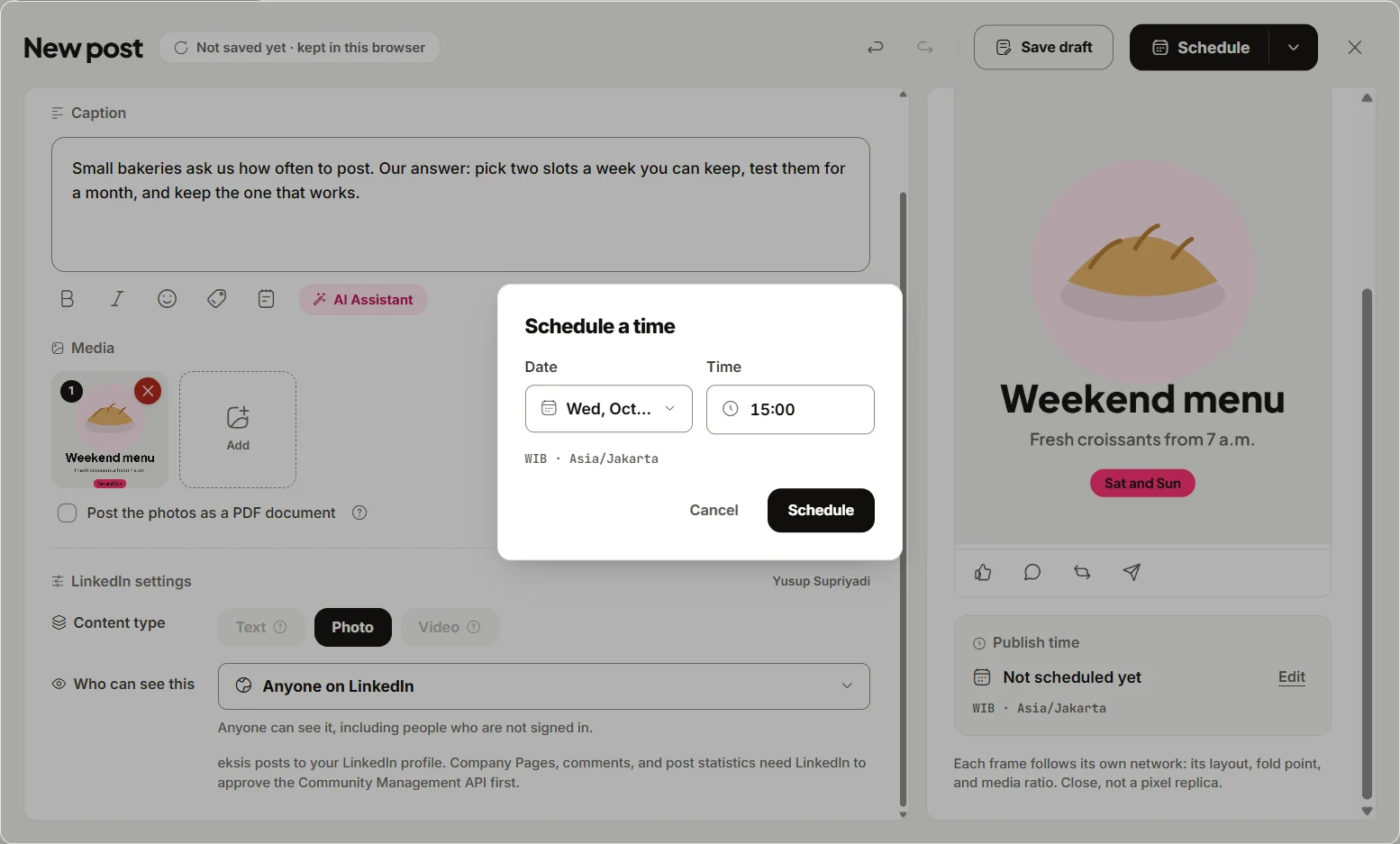
- Write the post. LinkedIn allows up to 3,000 characters and hides everything after the first 210 behind "see more", so put the point first. Add photos (up to 20) or one video if you want.
- Under Who can see this, choose Anyone on LinkedIn or Your connections only.
- Click Edit next to Publish time. In the Schedule a time dialog, pick the Date and Time, then click Schedule.
The post appears in Posts, where you can drag it to another time or open Post details to edit or delete it before it goes out. In List view, filter by your LinkedIn account and the Published status afterwards: the Time column shows when each post went out, which helps when you read results in LinkedIn's own analytics.
A PDF document post
eksis builds the document for you from images. It does not upload a PDF, PowerPoint, or Word file you have already made, so export your slides as images first (JPEG or PNG, one per slide).
- In the composer, pick your LinkedIn profile and add the slide images in order.
- On the LinkedIn tab, tick Post the photos as a PDF document. LinkedIn shows the pages as a swipeable document, one photo per page.
- Fill in Document title, up to 100 characters. It appears above the pages, and LinkedIn requires one.
- Write the caption, then schedule it with Edit next to Publish time, as above.
A document made this way holds at most 10 pages, and it takes photos only: eksis asks you to remove a video before you can tick the option. If your deck is longer than 10 slides, trim it or post it from LinkedIn itself.
Other things to know
- @mentions go out as plain text. LinkedIn grants the API for tagging people to approved partners only.
- LinkedIn refuses a post that repeats a recent one. Change the text a little and schedule it again.
- On the Free plan, eksis publishes up to 50 posts per LinkedIn profile in any 24 hours.
- The Free plan connects one social account and schedules 15 posts a month. Starter, at $4 a month, connects up to 20 accounts with no monthly cap.
See the LinkedIn integration for what eksis publishes, or compare plans.
Which way to schedule
If you post only to your own profile and rarely more than a few times a week, LinkedIn's scheduler covers it, including documents built from a PDF or a long deck. eksis is worth it when LinkedIn is one of several networks you plan together, or when you want the same announcement on LinkedIn, X, and Threads from one draft. If you manage a Company Page, schedule there in LinkedIn for now.
Before you fill the calendar, pick your slots with our guide to the best time to post on LinkedIn, and see the AEO workflow for LinkedIn for topics people already search for.
Sources
- LinkedIn Help: Schedule posts
- LinkedIn Help: Schedule a LinkedIn Page post
- LinkedIn Help: Upload and share documents on LinkedIn
- LinkedIn Help: Document uploads on LinkedIn FAQ
- eksis docs: Connect LinkedIn
- eksis docs: LinkedIn platform specifications
- eksis pricing
All were read on October 24, 2026.
Frequently Asked Questions
Can you schedule posts on LinkedIn without a tool?
Yes. Click Start a post, write it, click the clock icon, pick a date and time, click Next, and click Schedule. Personal profiles can schedule from 10 minutes to 3 months ahead, and Page admins from one hour to three months ahead.
Can you schedule a LinkedIn carousel?
A LinkedIn carousel is a document post, and LinkedIn's scheduling pages do not list documents among the posts that cannot be scheduled. On a Page, a post with several photos cannot be scheduled, so upload the slides as one PDF instead. In eksis, add the slides as images and tick Post the photos as a PDF document.
How big can a LinkedIn PDF be?
LinkedIn accepts PPT, PPTX, DOC, DOCX, and PDF files up to 100 MB and 300 pages, one file per post, with a required title. A document eksis builds from photos is limited to 10 pages.
Can I edit a LinkedIn document after posting?
You can edit the title and description, but not the file. To replace the document, delete the post and create a new one.
Can eksis post to my LinkedIn Company Page?
Not yet. Company Pages need LinkedIn's Community Management API, which LinkedIn approves case by case, and eksis has not been approved. eksis posts to your personal profile only, and it cannot show LinkedIn statistics or comments for the same reason.