How to schedule posts and threads on X, and how X credits work in eksis
X's free scheduler lives in the x.com composer on a computer, and guides disagree on whether it can schedule a whole thread. Here is how it works, why every app pays X per post, and how scheduling and X credits work in eksis.
9 min read



On this page
X lets you schedule a post for free from x.com on a computer. Write the post, click the calendar icon in the composer, pick the date, time, and time zone, click Confirm, then Schedule. The post waits in your Drafts under Scheduled until it goes out. The X mobile app does not offer this, according to Hootsuite's guide.
Threads are where the advice online splits. Some scheduling guides say X's composer can schedule a whole thread, others say it cannot at any price, and X's own help pages blocked our reader, so we could not settle it from the source. This guide covers what we could confirm about X's scheduler, what to check for threads, and how scheduling to X works in eksis, including the X credits that every post to X uses.
The short answer
- On x.com: write the post, click the calendar icon, set the date, time, and time zone, click Confirm, then Schedule.
- To edit or delete a scheduled post, open the calendar icon again, click Scheduled posts, and pick it from your Drafts.
- X's mobile app has no scheduler, Hootsuite says, unless you use X Pro, its paid dashboard.
- Whether a full thread can be scheduled natively is disputed between third-party guides. Try it in your own composer before you build a plan around it.
- eksis schedules single X posts with text, up to 4 photos, or one video, plus an optional first comment that goes out as a reply. It needs a paid plan, and each post uses X credits: 1 without a link, 13 with one.
Schedule a post on x.com
Hootsuite's walkthrough, updated February 2025, gives these steps on desktop:
- Go to your X home page. The composer sits at the top of the feed.
- Write the post and add photos, a GIF, or a link.
- Click the calendar icon in the composer toolbar.
- Choose the date, time, and time zone, then click Confirm.
- The time now shows above your post. Click Schedule.
Edit, reschedule, or delete a scheduled post
Click the calendar icon again and choose Scheduled posts at the bottom. That opens your Drafts, which has a tab for unsent posts and one for scheduled ones. Click a scheduled post to open it in the composer, change the text if you need to, click the date at the top to move it, and click Schedule again. To delete scheduled posts, click Edit at the top right of the Drafts page, tick the posts, and click Delete.
Who can use it
Hootsuite's walkthrough shows the scheduler in the standard x.com composer and does not mention a paid account. What it does need is a computer: Hootsuite says scheduling on X is desktop only, and that the X app cannot schedule unless you pay for X Pro, X's paid dashboard. X's help pages refused our reader, so check the current X Pro requirements on X before you pay for it.
What about threads?
A thread on X is a chain of your own posts, each a reply to the one before. When we checked in October 2026, guides from scheduling tools disagreed about whether X's own composer can schedule one: some describe adding posts with the plus button and scheduling the whole chain, and others say X has no thread scheduling at all. Because we could not read X's help pages to settle it, the honest advice is to test it: build a two-post thread in the composer and see whether the calendar icon is still available. If it is not, your options are to post the thread live or use a tool that publishes threads through X's API.
Why scheduling tools charge for X
X's API, the official way any app posts on your behalf, is billed per use. X's developer pricing page lists $0.015 for each post an app creates and $0.200 for a post that contains a URL, more than 13 times as much. Every scheduling tool that posts to X pays X per post, which is why many of them limit X posting or charge for it separately.
Schedule posts to X in eksis
eksis publishes to X through X's official API, and X posting is included from the Starter plan. On Free, the X card reads "Included from Starter".
To connect, click the + next to Channels in the sidebar, choose X, approve every permission (including posting on your behalf), tick the account on Pick the accounts to connect, and click Connect.
To schedule a post:
- Click Create post and pick your X account. If the same update goes to Threads, Bluesky, or LinkedIn, add those accounts and adjust the text on each account's tab.
- Write the post. The counter on the X tab follows X's own counting: a link counts as 23 characters and an emoji as two, so it can differ from the plain length of your text. eksis applies the standard 280-character limit and flags a longer caption before you schedule, instead of letting X cut it.
- Add media if you want: up to 4 photos of up to 5 MB each, or one video of up to 512 MB and between half a second and 140 seconds. X does not mix photos and video in one post.
- Set Who can reply: Anyone, Accounts you follow, or Mentioned only. Tick Made with AI if the post contains AI-generated media, and X shows a label on it.
- Optionally add a First comment. On X it goes out as your own reply under the post, a second post.
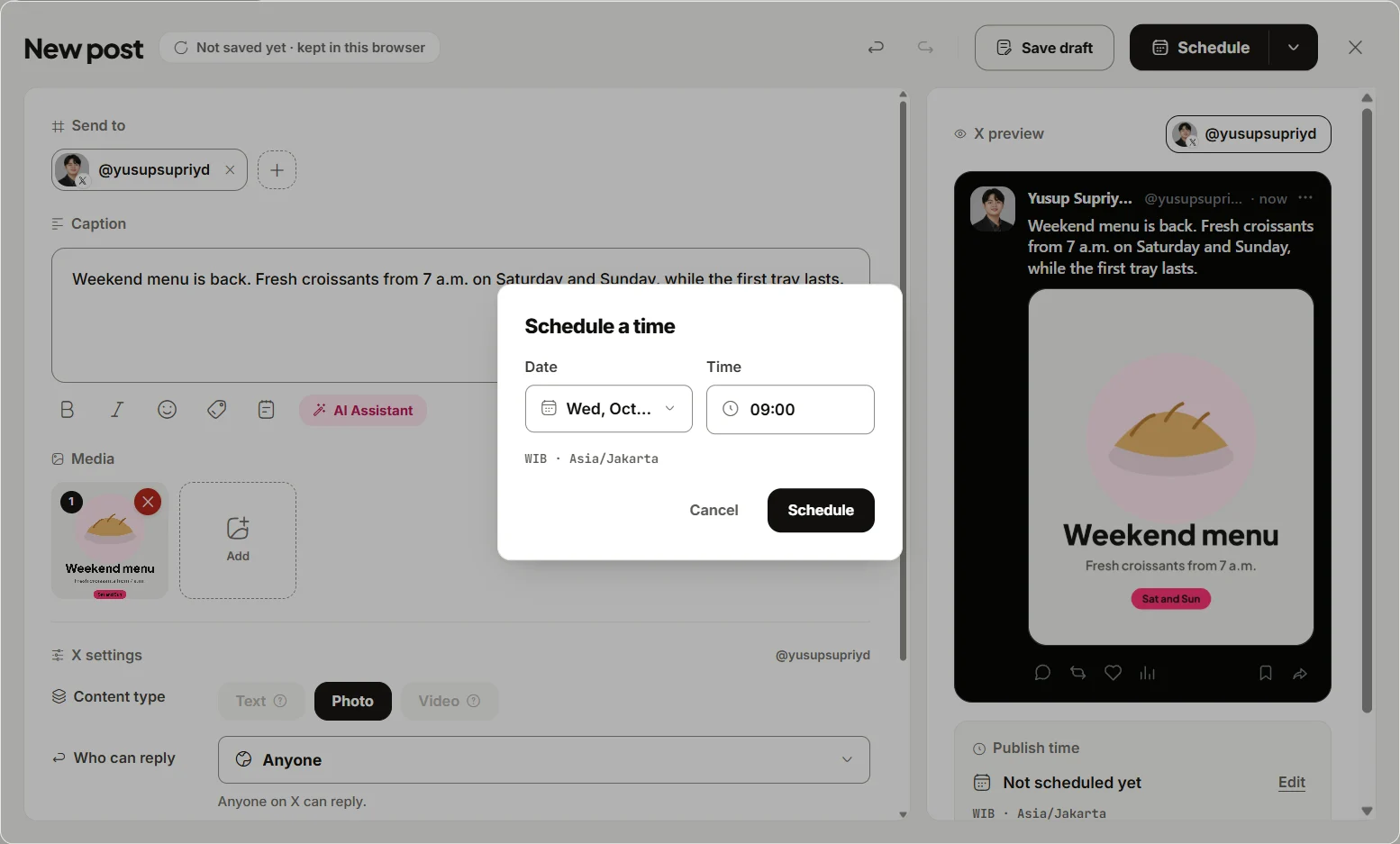
- Click Edit next to Publish time, pick the Date and Time in the Schedule a time dialog, and click Schedule.
The post appears in Posts, where you can drag it to a new time or open Post details to edit or delete it. Times follow your workspace time zone, under Settings, General, Time zone.
Threads in eksis
eksis does not build multi-post threads for X. You can schedule a single post and one first comment under it, which covers the common two-part pattern: the point in the post, the link or the details in the reply. For a longer thread, post it from X. If the reason for the thread is length, our guide to cross-posting to Threads, Bluesky, and X shows how to cut one update down to X's limit.
How X credits work in eksis
Because X bills per post, eksis meters X posting in X credits. Everything else in eksis is flat per workspace. From the eksis pricing page, as of October 24, 2026:
| Plan | Price | X credits a month |
|---|---|---|
| Free | $0 | None (no X publishing) |
| Starter | $4 a month | 15 |
| Premium | $15 a month | 100 |
| Agency | $39 a month | 300 |
The rules:
- A post without a link uses 1 credit. A post with a link uses 13 credits, in line with the roughly 13 times higher price X charges for a post with a URL.
- A first comment is a second post, so it uses credits too: 1, or 13 if it contains a link.
- Posts with links are capped at 2 a month from plan credits. Beyond that, link posts are paid from purchased credits.
- Replies you send to X from the eksis Inbox use credits as well. Automations do not reply, like, or hide on X, because an unattended automation would spend credits without anyone watching.
- Monthly credits reset every calendar month, also on yearly plans.
- When credits run out, a post to X shows On hold and goes out by itself once you add credits under Settings, Plan and billing.
You can buy credit packs on Settings, Plan and billing: 50 credits for $3, 100 for $5.50, or 500 for $25. Purchased credits never expire and come on top of the monthly ones.
In practice, Starter's 15 credits cover 15 plain posts a month, or one post with a link plus two without. If most of your X posts carry links, put the link in the post only when it matters, and plan on a pack or a larger plan.
Replies and comments
Replies to your X posts arrive in the eksis Inbox, where you can answer, like, or hide them. X lets an account delete only its own posts, so someone else's reply can be hidden but not deleted. eksis does not ask X for access to your direct messages, so X DMs stay in X.
See the X integration for what eksis publishes, or compare plans. For timing, our guide to how often to post on social media includes what the studies say about X.
Sources
- Hootsuite: How to schedule Tweets (3 methods + bonus tips) (updated February 18, 2025)
- X Developer Platform: X API pay-per-usage pricing and credits
- eksis docs: Connect X
- eksis docs: X platform specifications
- eksis docs: Plans and limits
- eksis pricing
All were read on October 24, 2026. X's own help pages on posting and X Pro (help.x.com) returned a bot check to our reader, so the native steps above come from Hootsuite's walkthrough rather than X directly.
Frequently Asked Questions
Can you schedule posts on X for free?
Yes, on a computer. In the x.com composer, click the calendar icon, set the date, time, and time zone, click Confirm, and click Schedule. The X mobile app does not have a scheduler, according to Hootsuite's guide.
Where do I find my scheduled posts on X?
Click the calendar icon in the composer, then Scheduled posts. They sit in your Drafts on a Scheduled tab, where you can open one to edit it or use Edit to delete several.
Can you schedule a thread on X?
Guides disagree on whether X's own composer can schedule a whole thread, and we could not confirm it from X's help pages. Test it with a two-post thread. eksis does not build threads; it schedules one post and an optional first comment that goes out as a reply.
Why does posting to X cost credits in eksis?
X charges every app per post through its API: $0.015 for a post and $0.200 for a post with a URL, according to X's developer pricing. eksis passes that on as X credits: 1 per post without a link, 13 per post with one. Starter includes 15 credits a month, Premium 100, and Agency 300.
What happens when I run out of X credits?
Scheduled posts to X go On hold instead of failing. They publish by themselves once you add credits from a pack on Settings, Plan and billing, or when your monthly credits reset at the start of the next calendar month.