How to schedule TikTok videos from your desktop, and what TikTok's own scheduler can't do
TikTok Studio schedules videos from a computer up to 10 days ahead, with no edits once booked. Here is how the native scheduler works, its limits, and how to schedule TikTok videos further out in eksis.
10 min read



On this page
You can schedule a TikTok video without a third-party app, but not from your phone. TikTok's own scheduler lives on the desktop upload page, now part of TikTok Studio, and it books a video anywhere from 15 minutes to 10 days ahead. Once a video is scheduled there, you cannot change its caption, video, or time. You delete it and upload it again.
That is enough for someone who batches a week of videos on Sunday night. It gets tight if you plan a month ahead, post the same video to Reels and Shorts, or want to fix a typo after booking the slot. This guide walks through TikTok's own scheduler first, as the sources read on October 24, 2026 describe it, then shows the same job in eksis and what eksis cannot do on TikTok.
The short answer
- Open tiktok.com on a computer, sign in, click Upload, add the video and caption, switch When to post to Schedule, pick a date and time, and click Schedule.
- TikTok's scheduler works from 15 minutes to 10 days ahead. Times default to your computer's time zone.
- Hootsuite's 2026 guide says the TikTok mobile app cannot schedule posts at all.
- A scheduled post cannot be edited in TikTok. To change anything, delete it and upload again.
- A scheduling tool that uses TikTok's official API can book further ahead and lets you edit before publish time, but it cannot use TikTok's in-app sounds or reach your TikTok comments.
Schedule a TikTok video in TikTok Studio
TikTok introduced its Video Scheduler in a TikTok For Business blog post dated July 16, 2021. The upload screen has been redesigned since then, so the steps below combine that announcement with Hootsuite's walkthrough, updated June 10, 2026.
- Open tiktok.com in a browser on your computer and sign in. Click Upload at the top right of the feed. This opens the TikTok Studio upload page.
- Click Select File and choose the video.
- Write the description, with hashtags and mentions, and set the cover image. Choose who can watch the video. Under the advanced settings you will also find comments, Duet, and Stitch, the content disclosure toggle for promotional posts, and a copyright check.
- In the When to Post section, select Schedule. Hootsuite notes that TikTok then asks you to confirm with Allow.
- Pick the date and time, then click Schedule.
TikTok's announcement says the time zone defaults to your computer's setting. If you are scheduling for an audience in another country, convert the time before you pick it. When a scheduled video goes live, TikTok sends a push notification.
To find what you have booked, open Posts in TikTok Studio's left menu. Hootsuite describes scheduled posts sitting under a separate Scheduled tab and moving to Posts once they publish.
Which accounts can schedule
The sources disagree. TikTok's 2021 announcement says the feature is for "creators and Business Accounts" in its first paragraph, then says a few lines later that you need a Business Account for desktop scheduling. Hootsuite's 2026 guide says a Creator or Business account works.
If the Schedule option is missing on your upload page, check your account type first. Hootsuite gives the path to switch: in the TikTok app, go to Settings, then Manage Account, then Switch to Business Account. Switching is free. Keep in mind that TikTok tells businesses not to use its general music library for commercial use, as our vertical video guide explains.
The limits of TikTok's scheduler
| Limit | What the sources say |
|---|---|
| How far ahead | 15 minutes to 10 days (TikTok, 2021) |
| Where | Desktop browser only. The TikTok app cannot schedule (Hootsuite, 2026) |
| Editing after scheduling | Not possible. Delete and re-upload (TikTok, 2021) |
| Time zone | Your computer's setting (TikTok, 2021) |
| Video length and size | Hootsuite: up to 10 minutes and under 10 GB. TikTok's creator tools page, quoted in our vertical video guide, lists uploads up to 30 minutes |
| Resolution | 720 x 1280 or higher (Hootsuite) |
| Other networks | TikTok only |
The no-edit rule is the one that bites. A wrong hashtag, a missing product link in the description, or a better cover frame all mean deleting the scheduled post and uploading the file again, including the processing wait.
The 10-day window shapes your routine too. You can batch-produce a month of videos, but you can only book the first ten days of them. The rest wait as drafts until the window reaches them.
When a scheduling tool makes sense
TikTok's scheduler is free and does the core job. A tool that publishes through TikTok's official API is worth it when one of these applies:
- You plan more than 10 days ahead, for a product launch or a holiday campaign.
- The same video also goes to Instagram Reels, YouTube Shorts, or Facebook Reels, and you want one calendar for all of them.
- Someone else writes or approves captions, and you want to fix a post after it is booked without uploading it again.
There are trade-offs, and they apply to every tool that uses the API, not just eksis:
- Trending sounds and TikTok's in-app effects live inside the app. Through the API you publish your finished file as it is, so mix the music into the video in your editor first, using audio you have the rights to.
- TikTok has not opened its comments or messaging API to third-party apps, so no tool can read or answer your TikTok comments or DMs. You still reply in the app.
- The post goes out under the privacy and interaction settings TikTok allows for that account at the moment of publishing. TikTok also needs a few minutes after publishing to process the video before it shows on your profile.
Schedule TikTok videos in eksis
eksis publishes video posts and photo posts to TikTok through TikTok's official Content Posting API. You connect the account once: click the + next to Channels in the sidebar, choose TikTok, log in, approve every permission TikTok asks for (including uploading videos), then tick the account on Pick the accounts to connect and click Connect.
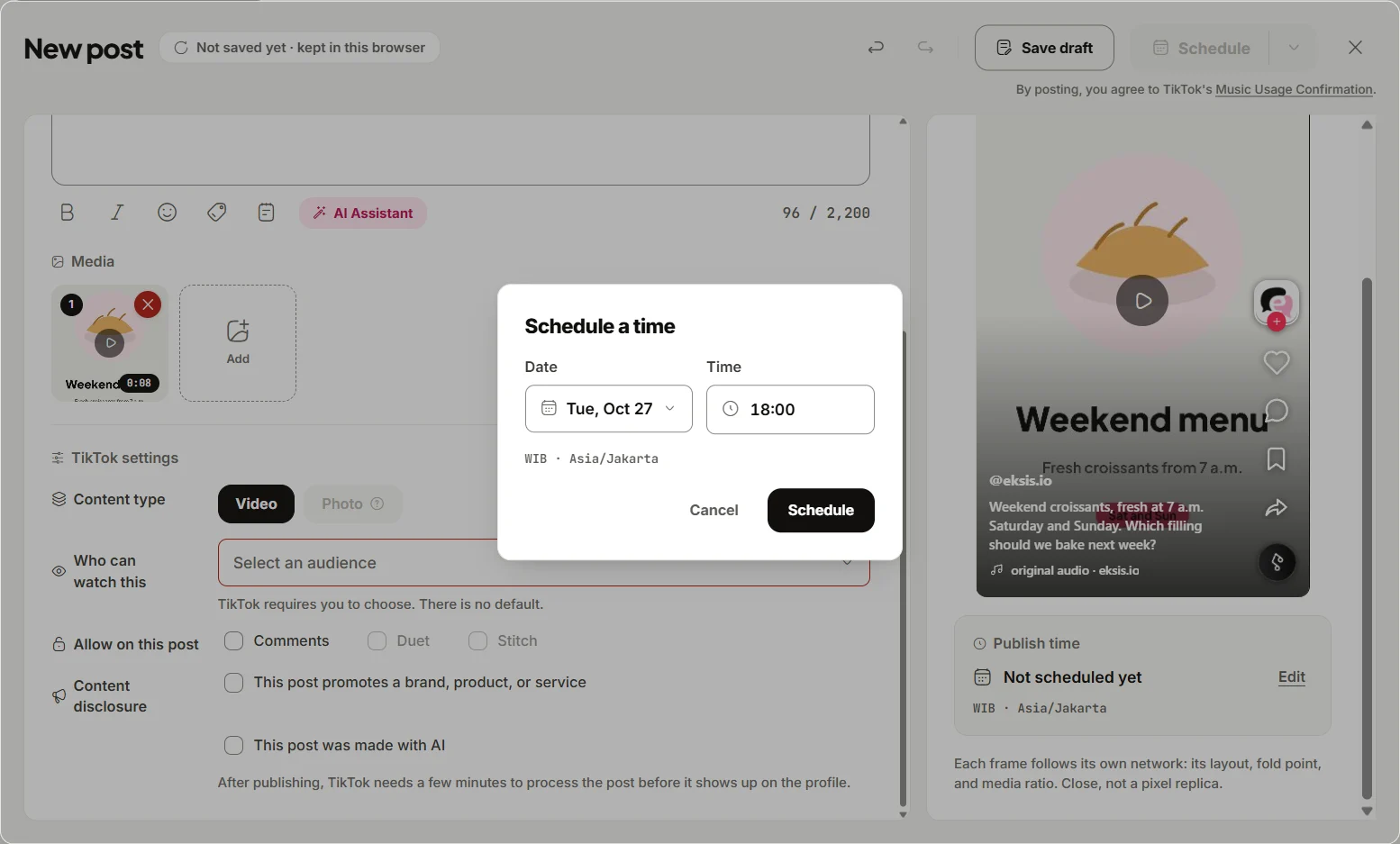
To schedule a video:
- Click Create post at the top of the sidebar, or press C anywhere in the app.
- Pick your TikTok account as the destination. If you also post the video elsewhere, add those accounts too.
- Add the video and write the caption. With several accounts selected, the caption under All channels goes to all of them, and each account gets its own tab where you can rewrite the caption just for TikTok.
- On the TikTok tab, set Content type to Video. Then choose Who can watch this: Everyone, Followers, Friends, or Only you. TikTok requires an answer, so there is no default, and eksis lists only the options TikTok reports for that account right now.
- Under Allow on this post, tick comments, Duet, and Stitch if you want them. A choice that is turned off in the account's TikTok settings stays off here.
- If the video promotes a brand, product, or service, turn on This post promotes a brand, product, or service and pick Your brand or Branded content. TikTok then labels the post "Promotional content" or "Paid partnership".
- Click Edit next to Publish time. In the Schedule a time dialog, pick the Date and Time, then click Schedule.
The time follows your workspace time zone, set under Settings, General, Time zone, not your computer's clock. eksis refuses a time that has already passed, and it does not hold you to TikTok's 10-day window.
Booked posts show in Posts, the workspace calendar, in Week, Month, or List view. Drag a card to another time to move it, or select it to open Post details, where you can edit, duplicate, or delete it before it goes out. That is the main practical difference from TikTok Studio: a typo in a scheduled caption is a quick edit, not a re-upload. Each TikTok account also has its own screen in the sidebar, with a Queue tab for what is scheduled and a Sent tab with links to what eksis published.
What eksis checks before you schedule
The composer checks the file against TikTok's limits as you work, so an oversized video is caught while drafting rather than at publish time. A TikTok video post through the API can be up to 10 minutes and 4 GB, and the Video option is greyed out for anything longer. At publish time eksis also checks the account's own cap, because TikTok's developer documentation, as our vertical video guide quotes it, gives some creators 3 minutes, some 5, and some 10.
Photo posts take 1 to 35 images, with an optional title of up to 90 characters shown above the photos, a choice of cover photo, and an option to Let TikTok pick a soundtrack.
What eksis does not do on TikTok
- It does not read or answer TikTok comments or DMs, and it cannot leave a first comment. TikTok has not opened those APIs.
- It does not add TikTok sounds, effects, or captions to your video. It publishes the file you upload.
- On the Free plan, it publishes up to 10 posts per TikTok account in any 24 hours. Paid plans follow TikTok's own limit, which TikTok does not publish and which is shared with every app posting to the account.
The Free plan connects one social account and schedules 15 posts a month, enough to keep a TikTok account on a three-a-week rhythm. To add Reels and Shorts to the same calendar you need more than one account, which starts on Starter at $4 a month for up to 20 accounts. See the TikTok integration for what eksis publishes, or compare plans.
Pick your time slots first
Scheduling only helps if the slots are good ones. Our guide to the best time to post on TikTok compares three studies that disagree on weekends, and how often to post covers how many slots to fill. If the same file is going to Reels and Shorts, read how to post one vertical video to all three before you export it.
Sources
- TikTok For Business: Introducing Video Scheduler, now you can plan TikTok videos in advance (published July 16, 2021)
- Hootsuite: How to schedule TikTok posts on mobile and desktop (updated June 10, 2026)
- eksis docs: Connect TikTok
- eksis docs: TikTok platform specifications
- eksis docs: Create and schedule a post
- eksis docs: Calendar and queue
- eksis pricing
All were read on October 24, 2026. TikTok changes its upload screen often, so the button names may differ slightly on your account.
Frequently Asked Questions
Can you schedule TikTok posts on the app?
Not in the TikTok mobile app itself. TikTok's scheduler is on the desktop upload page in TikTok Studio, and Hootsuite's 2026 guide confirms the app has no scheduling option. To schedule from a phone, use a scheduling tool that connects through TikTok's official API.
How far in advance can you schedule a TikTok?
TikTok's own scheduler accepts times from 15 minutes to 10 days ahead. Tools that publish through TikTok's API set their own limits; eksis only refuses times that have already passed.
Can I edit a scheduled TikTok post?
Not in TikTok. TikTok says you cannot change the video, caption, or time once a post is scheduled; you delete it and upload again. In eksis you can edit, move, or delete a scheduled post from Posts until it starts publishing.
Why don't I see the Schedule option on TikTok?
Check that you are on a computer, not the app, and that your account is a Creator or Business account. TikTok's own announcement is inconsistent about whether Creator accounts qualify, so switching to Business is the safest fix if the option is still missing.
Can eksis reply to my TikTok comments?
No. TikTok has not opened its comments or messaging API to third-party apps, so no scheduling tool can read or answer them. Comments and DMs stay in the TikTok app, while eksis still shows post performance for TikTok in Analytics on paid plans.