Turn one long video into a week of Shorts, Reels, and TikToks
A tutorial, podcast, or talk often holds several moments that work on their own. Here is how to find and cut them, what YouTube's own clipping tools allow, how to keep clips original on each platform, and how to schedule the week.
10 min read



On this page
One long video, such as a 20-minute tutorial, a podcast episode, a webinar, or a recorded talk, often holds several moments that would work on their own as short videos. Cut those out, reframe them for vertical screens, and you have a week of Shorts, Reels, and TikToks without filming anything new.
The work is in choosing the moments and cutting them so each clip makes sense to someone who never saw the original. This guide covers how to find clips, how to cut them, what YouTube's own clipping tools allow, and how to schedule the week. For the file specs that let one vertical export work on TikTok, Instagram, and YouTube, see our companion guide to posting one vertical video to TikTok, Reels, and Shorts. We do not repeat them here.
The short answer
- Watch the long video once with a notepad and mark every moment that stands alone: a single tip, a strong opinion, a before and after, a question answered, or a short story with an ending.
- Pick five to seven clips, one per day, and cut each to one idea. Start on the point, not on the introduction.
- Reframe to vertical, keep the speaker in frame, and add captions so the clip works with the sound off.
- On YouTube, Studio's Clips and Shorts tool and the app's Edit into a Short option link the Short back to the original video. Your own export gives you more control.
- Export clean files from your editor, without another app's watermark, and write a caption for each platform.
- Schedule the whole week in one sitting, then check which kinds of moments did best and use that when you plan the next long video.
Step 1: Find the moments that stand alone
Watch or skim the full video once, with a transcript open if you have one. Note the timestamps of every moment that would make sense to someone scrolling past with no context. Five kinds of moment tend to work:
- A single tip. "Turn the tray halfway through baking." One action, one result.
- A strong opinion. A sentence people might agree or argue with.
- A before and after. Anything where the change is visible.
- A question answered. Ideally a question your customers actually ask, stated at the start of the clip.
- A short story with an ending. A mistake, a customer moment, a surprise, told in under a minute or two.
Skip moments that depend on something said earlier ("as I mentioned before"), long setups, and sections that only work with slides the viewer cannot read on a phone.
Aim for more candidates than you need. Ten marked moments usually give you five or six good clips.
Step 2: Cut each clip to one idea
A clip that tries to carry two points usually carries neither. For each one:
- Start on the point. Cut the greeting, the "so", and the setup. If the moment answers a question, put the question on screen in the first second and start the answer right after.
- End when the idea ends. A clean last line is better than trailing off into the next topic.
- Keep it as short as the idea allows. Some tips land in 20 seconds; a story may need a minute or two. Length should follow the content, within each platform's limits.
- Add captions. Burn them into the video or use each platform's own captions, and check the spelling of names and products.
- Close with a pointer, not a pitch: "The full walkthrough is on our YouTube channel."
Reframe for vertical
Most long videos are horizontal. When you crop to 9:16, keep the speaker's face and hands, or the product, in the center of the frame. If two people are talking, cut between them rather than squeezing both into a narrow frame. Keep text away from the edges where each app places its buttons and captions; the companion guide has Meta's published safe-zone numbers.
Step 3: Decide how to make the YouTube Shorts
YouTube gives you two built-in ways to turn your own long video into Shorts, besides uploading your own edit.
YouTube Studio's Clips and Shorts tool
YouTube's help center describes a video clips and Shorts tool in YouTube Studio. You open the video under Content, choose Clips and Shorts, then Create clip or Short, and choose Short. You can select the part you want by highlighting text in the transcript or entering timestamps. Where available, it also offers AI-powered suggestions and an outline of the transcript; YouTube lists those as available in select countries and languages. The tool adds automatic captions where available, which you can restyle or turn off, and you finish with Create Draft and the normal upload steps.
YouTube is explicit about one worry: you won't be penalized for using your own content in a video clip or Short.
Edit into a Short in the YouTube app
In the mobile app, the watch page of your own public video has Remix, then Edit into a Short. According to YouTube's help center, you can select up to 60 seconds of the video and add text or filters, and if you select less than 60 seconds you can record more with the Shorts camera to fill the rest. Shorts made this way are linked back to the original video. Limits to know:
- Only long-form public videos you uploaded qualify. Private and unlisted videos, and videos with third-party copyright claims, cannot be used.
- If the option is missing, check that the video allows sampling: in YouTube Studio, open the video, choose Show more, and tick "Allow people to sample this content" under Shorts remixing.
- You cannot add music or sounds from YouTube's Audio Library to Shorts made this way.
Your own edit
Cutting the clips in your own editor takes longer but gives you one file you can post to TikTok and Instagram as well. If you upload your own edit as a Short, you can still point viewers to the full video: YouTube lets you add a related video to a Short in YouTube Studio, which shows as a clickable link below your channel handle. YouTube says that requires advanced feature access.
A practical split for a small team: use your own edit for clips that go to all three platforms, and use Studio's tool for extra YouTube-only Shorts when you have more good moments than days.
Step 4: Keep the files clean and original
Each platform treats copies differently, so a little care keeps the clips in front of new people:
- Export each clip from your editor. Do not download a clip from TikTok and upload it to Instagram, because it can carry TikTok's watermark. Instagram's help center lists reels with borders, logos, or watermarks, and reels that are not original, among those it shows less often.
- Post each clip once per platform. Instagram's ranking explainer lists reels that have already been posted on Instagram among those it aims to make less visible. Posting the same clip to TikTok, Instagram, and YouTube is one post on each, which is different from reposting it on the same app.
- Make each clip a real edit, not a near-copy of yesterday's. YouTube's spam policy says posting a few variations of a video is fine, but not using automated tools to flood the platform with similar content that has minimal changes.
The companion guide covers the music rules on each platform, which matter here too, since the soundtrack of your long video comes along with every clip.
Step 5: Plan the week
With five to seven clips, a simple plan is one clip per day on each platform:
| Day | Clip | Why there |
|---|---|---|
| Monday | The strongest single tip | Your best clip goes first, while the long video is newest |
| Tuesday | A question answered | Pairs well with comments from the weekend |
| Wednesday | A before and after | Visual clips need little caption |
| Thursday | A strong opinion | Gives people something to reply to |
| Friday | A short story | A lighter clip to end the week |
If the long video is new, publish it first and start the clips the same day or the day after, so every clip has something to point to. If it is an older video, the clips work as a reason for new viewers to find it.
Write a caption for each platform
The same clip needs different words in different places. A YouTube Short needs a title, and our caption length guide shows how much text each platform displays. Lead with what the viewer gets, mention where the full video lives, and keep hashtags to the few that describe the topic.
Step 6: Learn from the week
After the clips have had at least a week, compare them with each other and with your usual short videos. Note which kind of moment did best: tips, opinions, before and afters, answers, or stories. When you record the next long video, plan a few more of those moments on purpose, and say them in a way that works as a clip: a clear first sentence and a clean ending.
Schedule the week of clips in eksis
eksis does the publishing and scheduling half of this workflow. It does not cut, crop, caption, or re-encode video: it publishes each file as you upload it, so the clipping happens in your editor or in YouTube Studio.
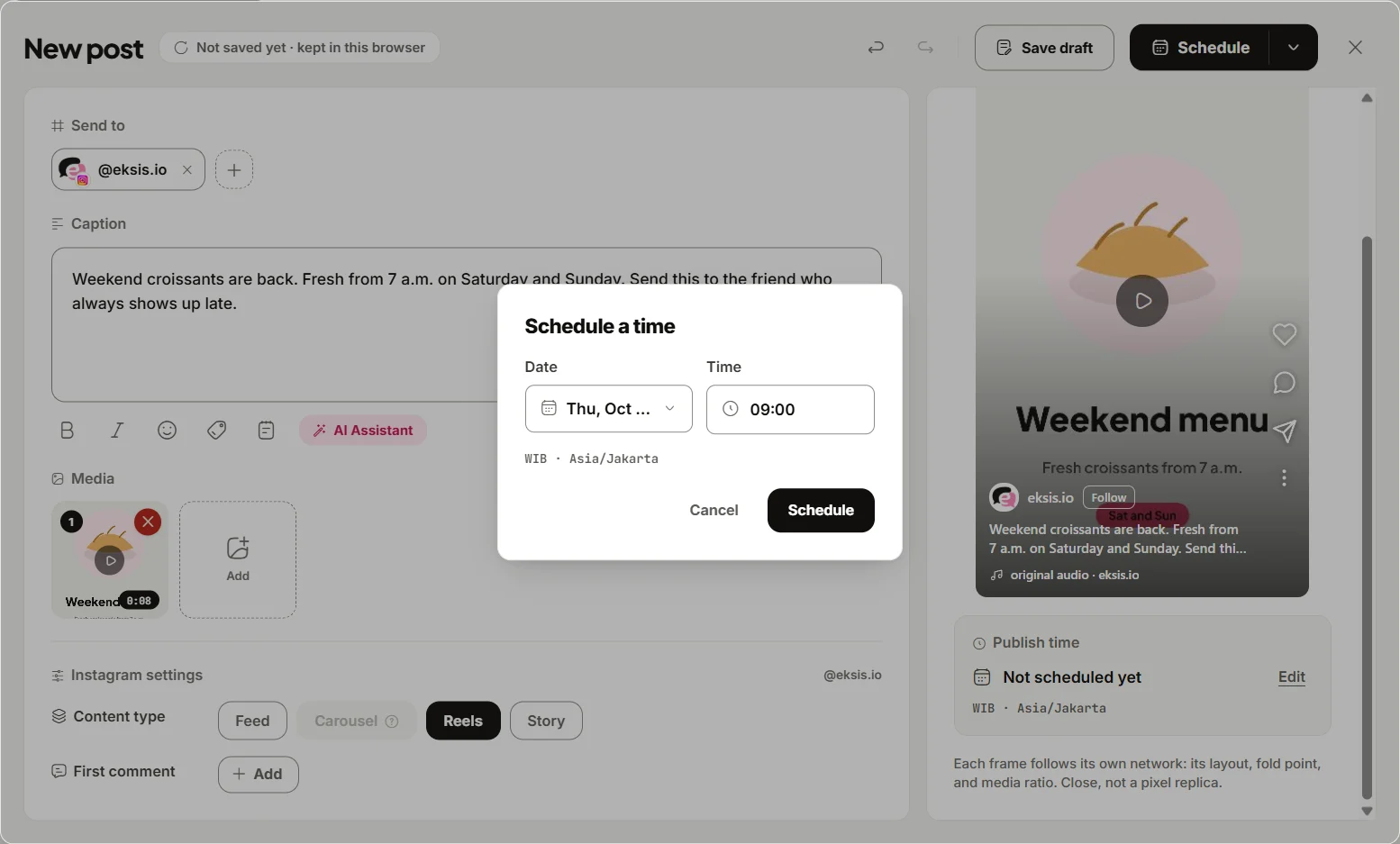
- Plan the clips. Open Create Idea in the sidebar to reach the Idea board, add a column named after the long video, and add one New idea per clip with the timestamps and the hook in the notes. Tag each idea with the kind of moment.
- Create one post per clip. Choose Create post, then pick your TikTok, Instagram, and YouTube accounts. Add the clip once and write the shared caption on All channels.
- Set each channel. On each channel's tab, choose the content type: Video for TikTok, Reels for Instagram, and Short for YouTube. Fill in the YouTube title and audience, and on TikTok choose Who can watch this. Reword the caption on any channel's tab where it should read differently.
- Schedule the week. Choose Schedule, then Schedule a time, for each clip. Times follow your workspace time zone under Settings, General, Time zone. The Week view in Posts shows all five or seven clips side by side, and you can drag a card to another day.
- Compare the results. On Starter and above, Analytics shows each clip under Post performance, sortable by reach or engagement rate, and Best hours to post shows which hours have worked for your own posts.
- Get help with captions. The Assistant on Home has a "Write a caption" suggestion and can save drafts. Paste in what the clip says and ask for a caption per platform, then add the video and schedule it in the composer.
eksis checks each clip against each platform before you schedule. For example, the Short option is greyed out for a video over 3 minutes or wider than it is tall, and a Reel must be vertical. Posting to three platforms needs three connected accounts, which means a paid plan: Free includes one social account and Starter includes 20. See plans and the TikTok, Instagram, and YouTube integrations.
Sources
- YouTube Help: Video clips and Shorts in YouTube Studio
- YouTube Help: Create YouTube Shorts from your videos
- YouTube Help: Add a related video to your YouTube Shorts
- YouTube Help: Spam policy
- Instagram Help Center: What kind of reels you may see on Instagram
- Instagram: Instagram Ranking Explained, by Adam Mosseri
All were read on October 24, 2026.
Frequently Asked Questions
How many short clips can I get from one long video?
There is no fixed number. It depends on how many moments make sense on their own. Mark more candidates than you need and keep the five to seven that make sense without the rest of the video.
Will YouTube penalize me for turning my long videos into Shorts?
No. YouTube's help center says you won't be penalized for using your own content in a video clip or Short. Its spam policy does not allow flooding the platform with high volumes of similar content made with minimal changes, so make each clip a real edit.
How long can a Short made with Edit into a Short be?
YouTube says you can select up to 60 seconds of your own public video. If you select less, you can record more with the Shorts camera to fill the rest. For a longer Short, cut it in your own editor and upload it.
Can I post the same clip to TikTok, Instagram, and YouTube?
Yes, once on each, if you export it from your editor rather than saving it from another app with a watermark. Instagram shows watermarked reels and reels already posted on Instagram less often, so do not repost the same clip on the same platform.
Can eksis cut a long video into clips?
No. eksis publishes the file you upload as it is, without trimming or re-encoding. Cut the clips in your editor or in YouTube Studio, then use eksis to schedule them to TikTok, Instagram, and YouTube in one post per clip.